# WALLIX Bastion
#### Contents
* [Install Trustelem Connect](https://trustelem-doc.wallix.com/books/trustelem-applications/page/wallix-bastion#bkmrk-install-trustelem-co-0)
* [Trustelem LDAP on Bastion](https://trustelem-doc.wallix.com/books/trustelem-applications/page/wallix-bastion#bkmrk-trustelem-ldap-on-ba)
* [Trustelem Radius on Bastion for AD users](https://trustelem-doc.wallix.com/books/trustelem-applications/page/wallix-bastion#bkmrk-trustelem-radius-on-)
* [Trustelem Radius on Bastion for Bastion users](https://trustelem-doc.wallix.com/books/trustelem-applications/page/wallix-bastion#bkmrk-trustelem-radius-on--0)
* [Trustelem Radius on Bastion for Trustelem users](https://trustelem-doc.wallix.com/books/trustelem-applications/page/wallix-bastion#bkmrk-trustelem-radius-on--1)
#### Install Trustelem Connect
Start by installing **Trustelem Connect**.
This will give Trustelem the ability to process LDAP and Radius authentications.
The documentation is the following:
[https://trustelem-doc.wallix.com/books/trustelem-administration/page/ldap-radius-trustelem-connect](https://trustelem-doc.wallix.com/books/trustelem-administration/page/ldap-radius-trustelem-connect)
You don't need to read the chapter **Setup an application to use Trustelem Connect**, the specific instructions for a Bastion application will be detailed in the next chapters.
The common mistakes will be also detailed, but if the authentication is not working you should start by reading the **Debug** chapter in this [**LDAP-Radius - Trustelem Connect**](https://trustelem-doc.wallix.com/books/trustelem-administration/page/ldap-radius-trustelem-connect#bkmrk-debug) documentation.
#### Trustelem LDAP on Bastion
On **Trustelem admin page**
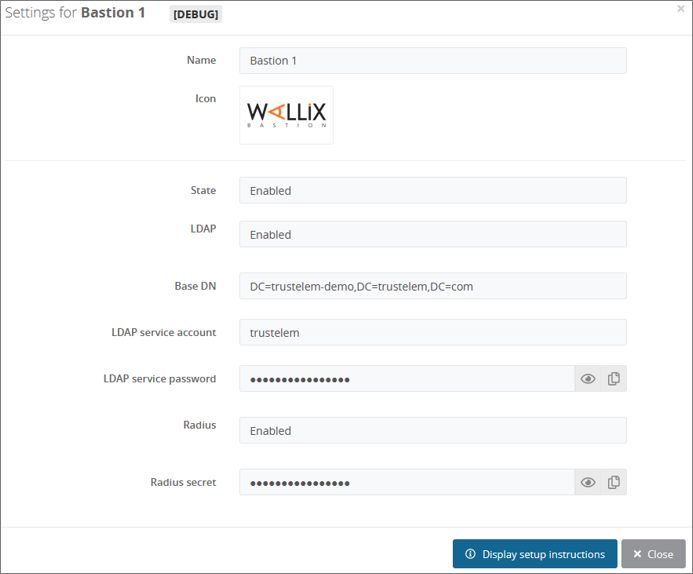
* Go on the tab **Apps**, and create a **Bastion** application
* Enable the **LDAP** protocol
[](https://trustelem-doc.wallix.com/uploads/images/gallery/2022-07/bastion.png)
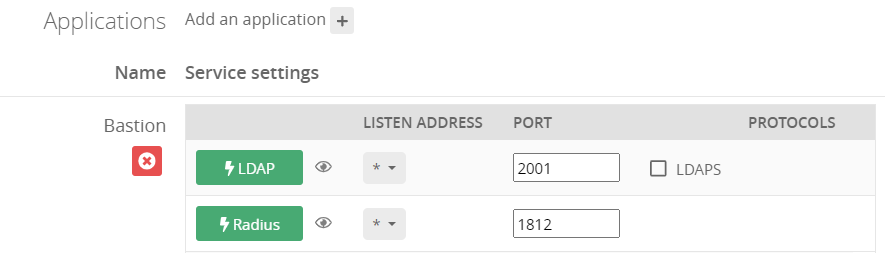
* Go on the **Service** setup in the **Install Trustelem Connect** chapter
* Click on **Add an application +** and select the **Bastion**
* Enable **LDAP protocol** by clicking on the **LDAP button**
* the listen address can be **localhost**, all existing IP address on the machine = **\***, or a specific IP = **...**
* this will open the defined udp (Radius) or tcp (LDAP) port on the machine running **Trustelem Connect** on the IP 127.0.0.1 (localhost) OR on all local IPs (*) OR on a specific local IP (...)
* if you have a dedicated VM for the connector, choose **\***
* you can let the default port **2001**
* Click **Save**
[! ](https://trustelem-doc.wallix.com/uploads/images/gallery/2023-10/protocolsservice.PNG)
On the **Bastion admin page**
* Go on **Configuration** > **External authentication**
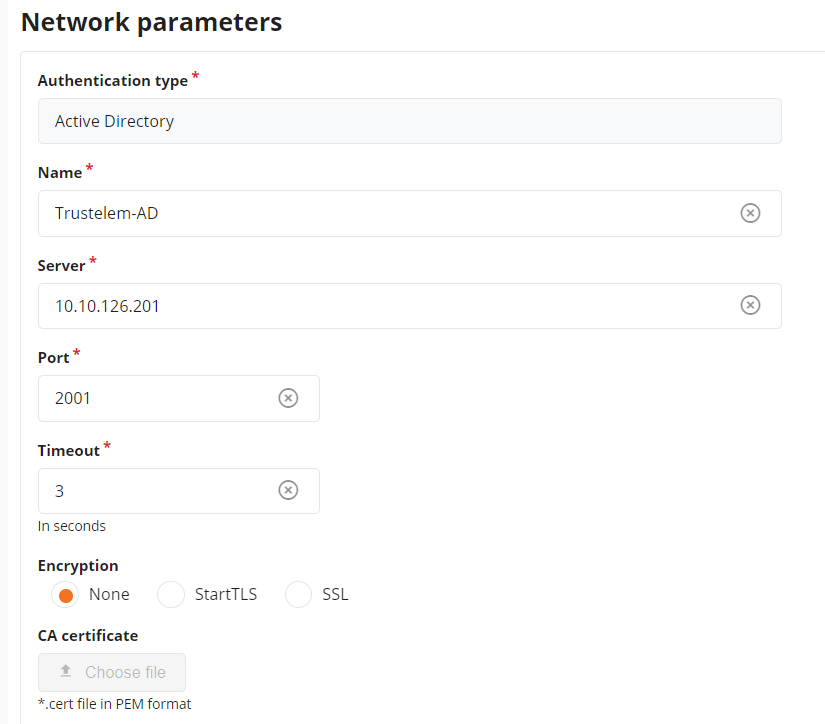
* Create a new **Active Directory authentication**
* In the field **Authentication name** choose a name for your LDAP authentication like **Trustelem AD**
* In The fields **Server** and **Port**, write the IP / FQDN of the machine running **Trustelem Connect** and the port defined on the **Trustelem Service** previously setup (should be 2001)
* In the **Timeout** field let the default value, unless you have latency on your network
[](https://trustelem-doc.wallix.com/uploads/images/gallery/2023-10/externalad1.PNG)
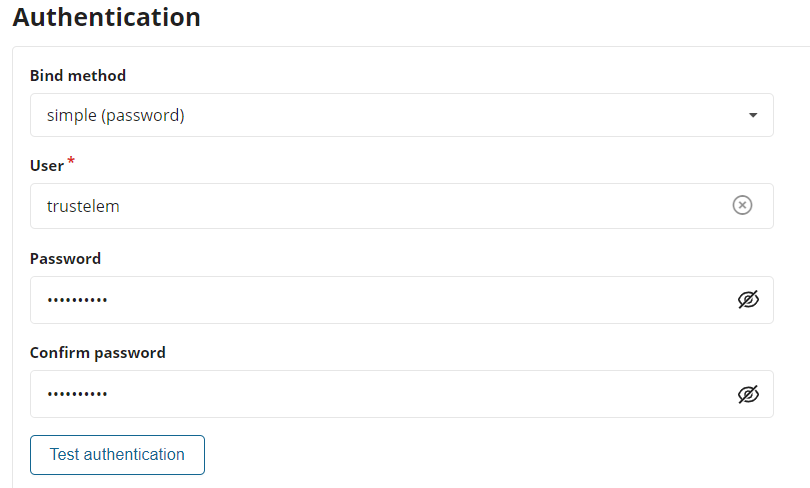
* Let the **Bind method** to **simple**
* Enter **trustelem** in the field **User**.
*trustelem is the default value, but can be changed on the Trustelem Bastion app model. Of course if you changed it for a good reason, provide the right service account name*
* Provide the **password of trustelem account** in the fields **Password** and **Confirm Password**.
*This password can be found in the Trustelem Bastion app model.*
[](https://trustelem-doc.wallix.com/uploads/images/gallery/2023-10/externalad2.PNG)
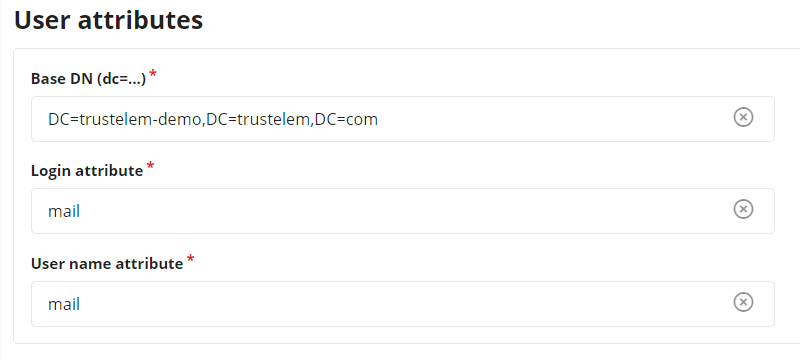
* Write the **LDAP Base DN** provides in your Trustelem Bastion app model, in the **Base DN** field.
* Change the **Login attribute** and **User name attribute** to **mail**
* Usually Trustelem LDAP is used to provision **local Trustelem users** on the Bastion, and they can be authenticated only with the login attribute **mail**.
If for some reason you want to authenticate **synchronized Trustelem AD users** instead, you can use **sAMAccountName** for those attributes.
[](https://trustelem-doc.wallix.com/uploads/images/gallery/2023-10/externalad3.PNG)
* Click on **Test authentication**, you should see a message with **Authentication success**
* If not, read the [debug chapter of LDAP-Radius Trustelem Connect](https://trustelem-doc.wallix.com/books/trustelem-administration/page/ldap-radius-trustelem-connect#bkmrk-debug)
* Click on **Apply**
* Go on **Configuration** > **Authentication domains**
* Create a new **Active Directory authentication domain**
* Choose a **Server domain name** --> no impact on the setup
* Choose an **Authentication domain name** --> used for the Bastion/AM login (sAMAccountName@domain_name, email@domain_name...)
* In the tab **Directory** select the previous **Active Directory authentication**
* Enter a **Default email domain** in the corresponding field --> should not be used for this kind of authentication where the login is usually not the sAMAccountName
* Click on **Apply**
* On the top of the screen, click on **Mappings** --> in some Bastion versions, the mapping is not a different tab and can be set with the previous settings.
* Click on **Add**
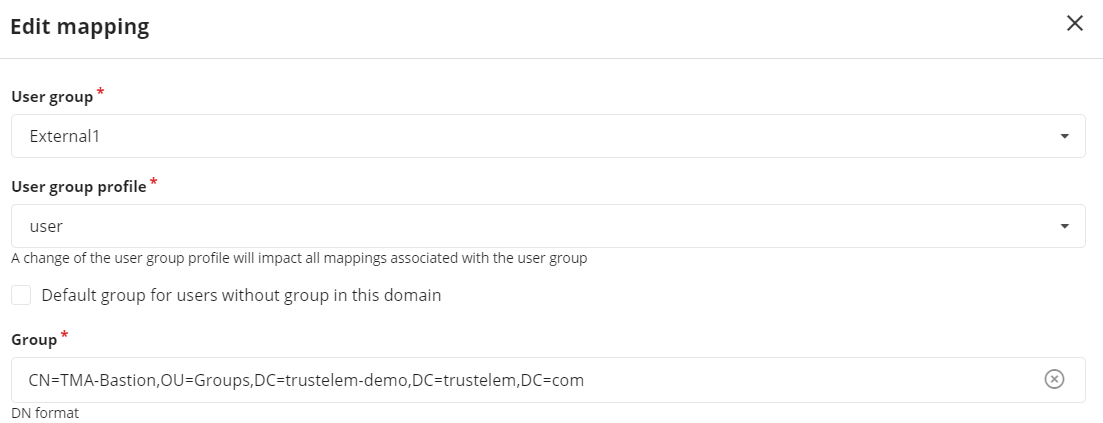
* Select a **Bastion user group** and a **profile** --> define the available access
* Provide the **Trustelem group CN**
](https://trustelem-doc.wallix.com/uploads/images/gallery/2023-10/protocolsservice.PNG)
On the **Bastion admin page**
* Go on **Configuration** > **External authentication**
* Create a new **Active Directory authentication**
* In the field **Authentication name** choose a name for your LDAP authentication like **Trustelem AD**
* In The fields **Server** and **Port**, write the IP / FQDN of the machine running **Trustelem Connect** and the port defined on the **Trustelem Service** previously setup (should be 2001)
* In the **Timeout** field let the default value, unless you have latency on your network
[](https://trustelem-doc.wallix.com/uploads/images/gallery/2023-10/externalad1.PNG)
* Let the **Bind method** to **simple**
* Enter **trustelem** in the field **User**.
*trustelem is the default value, but can be changed on the Trustelem Bastion app model. Of course if you changed it for a good reason, provide the right service account name*
* Provide the **password of trustelem account** in the fields **Password** and **Confirm Password**.
*This password can be found in the Trustelem Bastion app model.*
[](https://trustelem-doc.wallix.com/uploads/images/gallery/2023-10/externalad2.PNG)
* Write the **LDAP Base DN** provides in your Trustelem Bastion app model, in the **Base DN** field.
* Change the **Login attribute** and **User name attribute** to **mail**
* Usually Trustelem LDAP is used to provision **local Trustelem users** on the Bastion, and they can be authenticated only with the login attribute **mail**.
If for some reason you want to authenticate **synchronized Trustelem AD users** instead, you can use **sAMAccountName** for those attributes.
[](https://trustelem-doc.wallix.com/uploads/images/gallery/2023-10/externalad3.PNG)
* Click on **Test authentication**, you should see a message with **Authentication success**
* If not, read the [debug chapter of LDAP-Radius Trustelem Connect](https://trustelem-doc.wallix.com/books/trustelem-administration/page/ldap-radius-trustelem-connect#bkmrk-debug)
* Click on **Apply**
* Go on **Configuration** > **Authentication domains**
* Create a new **Active Directory authentication domain**
* Choose a **Server domain name** --> no impact on the setup
* Choose an **Authentication domain name** --> used for the Bastion/AM login (sAMAccountName@domain_name, email@domain_name...)
* In the tab **Directory** select the previous **Active Directory authentication**
* Enter a **Default email domain** in the corresponding field --> should not be used for this kind of authentication where the login is usually not the sAMAccountName
* Click on **Apply**
* On the top of the screen, click on **Mappings** --> in some Bastion versions, the mapping is not a different tab and can be set with the previous settings.
* Click on **Add**
* Select a **Bastion user group** and a **profile** --> define the available access
* Provide the **Trustelem group CN**
CN=[Trustelem Group Name],OU=Groups,DC=[Trustelem Domain],DC=trustelem,DC=com
--> if you don't respect the case, the authentication won't work
[](https://trustelem-doc.wallix.com/uploads/images/gallery/2023-10/mappingbastion.PNG)
* Click on **Apply an close**
You now have a working LDAP authentication, with access to targets based on Trustelem groups.
/!\ Trustelem users will not be found by the Bastion before having an access rule (1 or 2 factors)
The documentation to defined the access rules is provided in the page: [https://trustelem-doc.wallix.com/books/trustelem-administration/page/access-rules](https://trustelem-doc.wallix.com/books/trustelem-administration/page/access-rules)
For this kind of authentication, you need a **LDAP access rule** set to **1 factor** if it will be conbined with a **Radius authentication** or **2 factors** if not.
##### What if I want to encrypt my LDAP flows?
The best way to encrypt the LDAP flows is simply to check startTLS on the Bastion. As Trustelem is compatible, flows are automatically encrypted.
The alternative is to implement LDAPS. To do this, there are several steps:
1/ Configure the connector.
On the Trustelem Connect folder, add a **config.ini** file and provide the following information
(adapted to your own repository and your own certifiates):
```
tls_cert = "C:\Program Files (x86)\Trustelem\connector.crt"
tls_cert_key = "C:\Program Files (x86)\Trustelem\connector.key"
```
Then, restart the connector service on your Virtual machine.
2/ Enable LDAPS on the Trustelem service.
3/ Enable SSL on the Bastion
4/ Optionally, add to the Bastion the authority certificate associated with the certificates used in step 1.
#### Trustelem Radius on Bastion for AD users
On **Trustelem admin page**
* Go on the tab **Apps**, and create a **Bastion** application (if not already done in a LDAP setup)
* Enable the **Radius** protocol
[](https://trustelem-doc.wallix.com/uploads/images/gallery/2022-07/bastion.png)
* Go on the **Service** setup in the **Install Trustelem Connect** chapter
* Click on **Add an application +** and select the **Bastion** (if not already done in a LDAP setup)
* Enable **Radius protocol** by clicking on the **Radius button**
* the listen address can be **localhost**, all existing IP address on the machine = **\***, or a specific IP = **...**
* this will open the defined udp (Radius) or tcp (LDAP) port on the machine running **Trustelem Connect** on the IP 127.0.0.1 (localhost) OR on all local IPs (*) OR on a specific local IP (...)
* if you have a dedicated VM for the connector, choose **\***
* you can let the default port **1812** but if you don't know if it is already used on the machine running the connector, choose **2812** instead
* Click **Save**
[!](https://trustelem-doc.wallix.com/uploads/images/gallery/2023-10/protocolsservice.PNG)
On the **Bastion admin page**
* Go on **Configuration** > **External authentication**
* Create a new **Radius authentication**
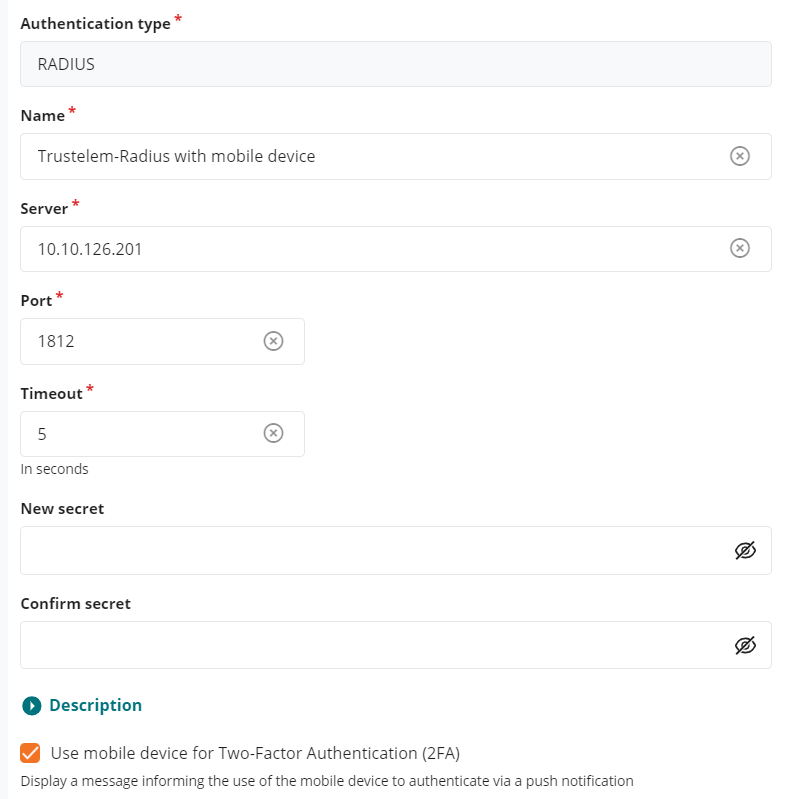
* In the field **Name** choose a name for your Radius authentication like **Trustelem Radius**
* In The fields **Server** and **Port**, write the IP / FQDN of the machine running **Trustelem Connect** and the port defined on the **Trustelem Service** previously setup (should be 1812 or 2812)
* In the **Timeout** field let the default value, unless you have latency on your network
* Provide the **Radius secret** in the fields **New secret** and **Confirm secret**.
*This secret can be found in the Trustelem Bastion app model.*
* Check the option **Use mobile device for 2 factor authentication(2FA)**
* This option has be designed for MFA with push authentication. But the real effect is to skip the login + password step for the Radius authentication by automatically sending the login and an empty password.
* Here we want to use Active Directory for the login + password step, so we don't want to ask for the Radius password = we need to activate this option.
* Click on **Apply**
[](https://trustelem-doc.wallix.com/uploads/images/gallery/2023-10/externalradius.PNG)
* Go on **Configuration** > **Authentication domains**
* Click on your existing **Active Directory authentication domain**
* In the field **Secondary authentication** select the previous **Radius external authentication**
* Click on **Apply**
You can't test the authentication yet, first you need to define the **access rules** on Trustelem.
The documentation is provided in the page: [https://trustelem-doc.wallix.com/books/trustelem-administration/page/access-rules](https://trustelem-doc.wallix.com/books/trustelem-administration/page/access-rules)
For this kind of authentication, you need a **Radius access rule** set to **2nd factor only**
If you want to skip the 2nd factor step for some users, you can select for them the rule **Always allow** instead on Trustelem.
If the authentication doesn't work correctly:
* Read the [debug chapter of LDAP-Radius Trustelem Connect](https://trustelem-doc.wallix.com/books/trustelem-administration/page/ldap-radius-trustelem-connect#bkmrk-debug)
* You can also verify if you checked the option **Use mobile device** on the **Radius external authentication**
#### Trustelem Radius on Bastion for Bastion users
On **Trustelem admin page**
* Go on the tab **Apps**, and create a **Bastion** application (if not already done in a LDAP setup)
* Enable the **Radius** protocol
[](https://trustelem-doc.wallix.com/uploads/images/gallery/2022-07/bastion.png)
* Go on the **Service** setup in the **Install Trustelem Connect** chapter
* Click on **Add an application +** and select the **Bastion** (if not already done in a LDAP setup)
* Enable **Radius protocol** by clicking on the **Radius button**
* the listen address can be **localhost**, all existing IP address on the machine = **\***, or a specific IP = **...**
* this will open the defined udp (Radius) or tcp (LDAP) port on the machine running **Trustelem Connect** on the IP 127.0.0.1 (localhost) OR on all local IPs (*) OR on a specific local IP (...)
* if you have a dedicated VM for the connector, choose **\***
* you can let the default port **1812** but if you don't know if it is already used on the machine running the connector, choose **2812** instead
* Click **Save**
[!](https://trustelem-doc.wallix.com/uploads/images/gallery/2023-10/protocolsservice.PNG)
On the **Bastion admin page**
* Go on **Configuration** > **External authentication**
* Create a new **Radius authentication**
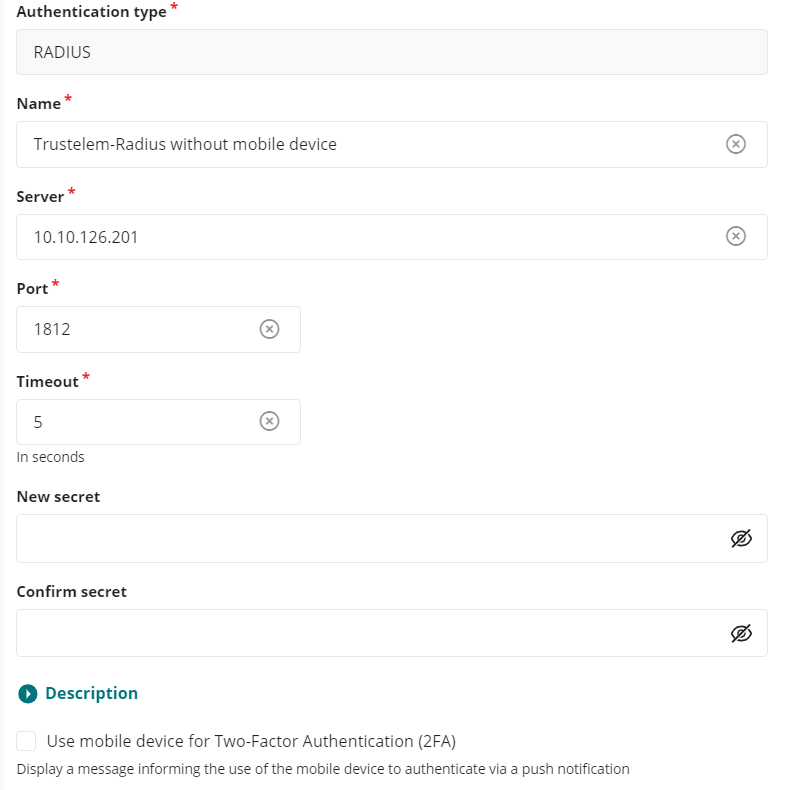
* In the field **Name** choose a name for your Radius authentication like **Trustelem Radius**
* In The fields **Server** and **Port**, write the IP / FQDN of the machine running **Trustelem Connect** and the port defined on the **Trustelem Service** previously setup (should be 1812 or 2812)
* In the **Timeout** field let the default value, unless you have latency on your network
* Provide the **Radius secret** in the fields **New secret** and **Confirm secret**.
*This secret can be found in the Trustelem Bastion app model.*
* Don't check the option **Use mobile device for 2 factor authentication(2FA)**
* This option has be designed for MFA with push authentication. But the real effect is to skip the login + password step for the Radius authentication by automatically sending the login and an empty password.
* Here we want to verify login + password + 2nd factor with Radius, because a local Bastion user can't have the authentication local password + Radius. So this option must not be activated.
* Click on **Apply**
[](https://trustelem-doc.wallix.com/uploads/images/gallery/2023-10/externalradius2.PNG)
* Go on **Accounts**
* Click on an existing user
* Verify if his login (**UserName**) is something known by Trustelem : should be an email if the associated Trustelem user is a local one.
* In the field **Authentication and backup servers** select only the previous **Radius external authentication**
* As mentioned before, this user can't have a local password + Radius. If you select both, the Bastion will try the first method (local password). If it is a success, the authentication is completed, if not the Bastion will try the Radius authentication.
* Click on **Apply**
You can't test the authentication yet, first you need to define the **access rules** on Trustelem.
The documentation is provided in the page: [https://trustelem-doc.wallix.com/books/trustelem-administration/page/access-rules](https://trustelem-doc.wallix.com/books/trustelem-administration/page/access-rules)
For this kind of authentication, you need a **Radius access rule** set to **2 factors**
If the authentication doesn't work correctly:
* Read the [debug chapter of LDAP-Radius Trustelem Connect](https://trustelem-doc.wallix.com/books/trustelem-administration/page/ldap-radius-trustelem-connect#bkmrk-debug)
* As mentioned in this page, if the login of the local user is unknown by Trustelem the authentication won't work, but you'll have some logs
#### Trustelem Radius on Bastion for Trustelem users
On **Trustelem admin page**
* Go on the tab **Apps**, and create a **Bastion** application (if not already done in a LDAP setup)
* Enable the **Radius** protocol
[](https://trustelem-doc.wallix.com/uploads/images/gallery/2022-07/bastion.png)
* Go on the **Service** setup in the **Install Trustelem Connect** chapter
* Click on **Add an application +** and select the **Bastion** (if not already done in a LDAP setup)
* Enable **Radius protocol** by clicking on the **Radius button**
* the listen address can be **localhost**, all existing IP address on the machine = **\***, or a specific IP = **...**
* this will open the defined udp (Radius) or tcp (LDAP) port on the machine running **Trustelem Connect** on the IP 127.0.0.1 (localhost) OR on all local IPs (*) OR on a specific local IP (...)
* if you have a dedicated VM for the connector, choose **\***
* you can let the default port **1812** but if you don't know if it is already used on the machine running the connector, choose **2812** instead
* Click **Save**
[!](https://trustelem-doc.wallix.com/uploads/images/gallery/2023-10/protocolsservice.PNG)
On the **Bastion admin page**
* Go on **Configuration** > **External authentication**
* Create a new **Radius authentication**
* In the field **Name** choose a name for your Radius authentication like **Trustelem Radius**
* In The fields **Server** and **Port**, write the IP / FQDN of the machine running **Trustelem Connect** and the port defined on the **Trustelem Service** previously setup (should be 1812 or 2812)
* In the **Timeout** field let the default value, unless you have latency on your network
* Provide the **Radius secret** in the fields **New secret** and **Confirm secret**.
*This secret can be found in the Trustelem Bastion app model.*
* Check the option **Use mobile device for 2 factor authentication(2FA)**
* This option has be designed for MFA with push authentication. But the real effect is to skip the login + password step for the Radius authentication by automatically sending the login and an empty password.
* Here we want to use Active Directory for the login + password step, so we don't want to ask for the Radius password = we need to activate this option.
* Click on **Apply**
[](https://trustelem-doc.wallix.com/uploads/images/gallery/2023-10/externalradius.PNG)
* Go on **Configuration** > **Authentication domains**
* Click on your existing **Trustelem Active Directory authentication domain**
* In the field **Secondary authentication** select the previous **Radius external authentication**
* Click on **Apply**
You can't test the authentication yet, first you need to define the **access rules** on Trustelem.
The documentation is provided in the page: [https://trustelem-doc.wallix.com/books/trustelem-administration/page/access-rules](https://trustelem-doc.wallix.com/books/trustelem-administration/page/access-rules)
For this kind of authentication, you need a **Radius access rule** set to **2nd factor only**
If you want to skip the 2nd factor step for some users, you can select for them the rule **Always allow** instead on Trustelem.
If the authentication doesn't work correctly:
* Read the [debug chapter of LDAP-Radius Trustelem Connect](https://trustelem-doc.wallix.com/books/trustelem-administration/page/ldap-radius-trustelem-connect#bkmrk-debug)
* You can also verify if you checked the option **Use mobile device** on the **Radius external authentication**