# Trustelem local users
#### Contents
* [What Trustelem local users are?](https://trustelem-doc.wallix.com/books/trustelem-administration/page/trustelem-local-users#bkmrk-what-trustelem-local-0)
* [Creation](https://trustelem-doc.wallix.com/books/trustelem-administration/page/trustelem-local-users#bkmrk-creation)
* [Management](https://trustelem-doc.wallix.com/books/trustelem-administration/page/trustelem-local-users#bkmrk-management)
* [Temporary users](https://trustelem-doc.wallix.com/books/trustelem-administration/page/trustelem-local-users#bkmrk-temporary-users)
#### What Trustelem local users are?
* Trustelem local users should be used **when the accounts are not stored in corporate directories**
* They should also be used for administration purposes, to have at least one backup admin account.
* They can be managed with **Trustelem administration console**, with the **Delegated administration tool**, or with **API**
* Their attributes are fully editable
* Their passwords are stored by Trustelem
* The email address (**Primary Email**) is unique: 2 accounts can't have the same.
* As it is not possible to have 2 identical email address (**Primary Email**). If later you synchronize a directory user with the same **Primary Email** the 2 accounts will be merged and the local account will disappear.
* The email address (**Primary Email**) will be the login of this account.
--> This account doesn't have a sAMAccountName.
#### Creation
* Go on the tabs **Users**
* Click on **+ Create**
* Provide the **First Name**, **Last Name**, and **Primary Email**
* If the account will be a Trustelem admin, check **Administration rights**
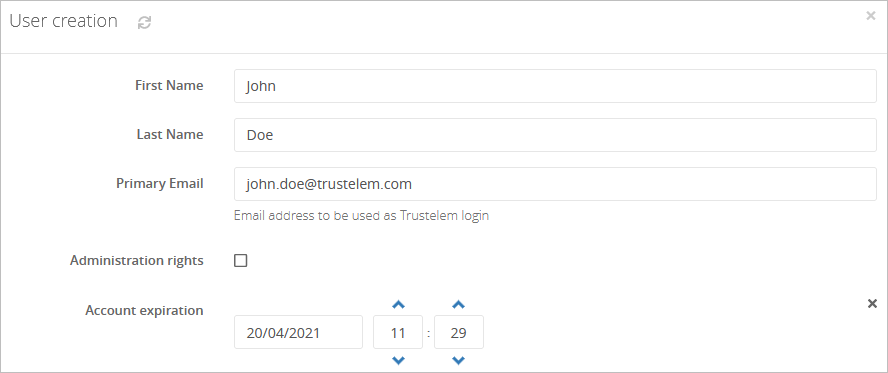
* Optionally, select an **Expiration date** for the account
* Optionally, affect the wanted **Groups** to the user
* Optionally, provide the **Contact information** : it will not be use by the service. This information is only for you.
* Optionally, define some **Attributes** for the user. Those attributes can be sent to applications, or used by the Delegated administration tool.
* Select the **Account Activation** method:
* **Temporary password**: you will have a temporary password in the tab **Alerts** and it has to be communicated to the user manually.
* **Link by e-mail**: an activation link will be sent to the **Primary Email**
#### Management
By clicking on the user, you can:
* Generate a reset code for the password if a user lost it
* Send an email to the **Primary Email** to reset the password
* Send an email to another email address to reset the password
* Register 2nd factor with the user
* Send an enrolment link for the 2nd factor to the **Primary Email**
* Send an enrolment link for the 2nd factor to another email address
* Delete a 2nd factor
* Change information and attributes
#### Temporary users
As said before, an administrator can define an expiration date for a user account:
* using the administration page
[](https://trustelem-doc.wallix.com/uploads/images/gallery/2022-06/account-expiration.PNG)
* using the API (create or update user - **accountExpiration**)
```ts
updateUser(args: {
id: UserID;
firstName?: string;
lastName?: string;
email?: string;
email2?: string;
isAdmin?: boolean;
suspended?: boolean;
accountExpiration?: Date | number | string | null //Expiration parameter
groups?: GroupID[];
}): { error?: string; };
```
When the date is reached, the account has a status **Expired** and the user can't authenticate on Trustelem anymore.