# SCIM Client
#### Contents
* [How does it work?](#bkmrk-how-does-it-work%3F)
* [Prerequisites](#bkmrk-prerequisites)
* [Setup Trustelem Connect on a Windows machine](#bkmrk-setup-trustelemconne)
* [Setup Trustelem Connect on a Linux machine](#bkmrk-setup-trustelem-conn)
* [Declare the SCIM server as a connector target](#bkmrk-declare-the-scim-ser)
* [Setup an application to provision through SCIM](#bkmrk-setup-an-application)
* [Force a synchronization](#bkmrk-force-a-synchronizat)
* [Debug](#bkmrk-debug)
#### How does it work?
The goal is to use the Trustelem to **provision users and groups** into an application that exposes a **SCIM 2.0** API. The connector is what lets Trustelem reach a SCIM server that is **only accessible from the customer's private network**, but it can just as well forward to a SCIM server reachable from outside the network.
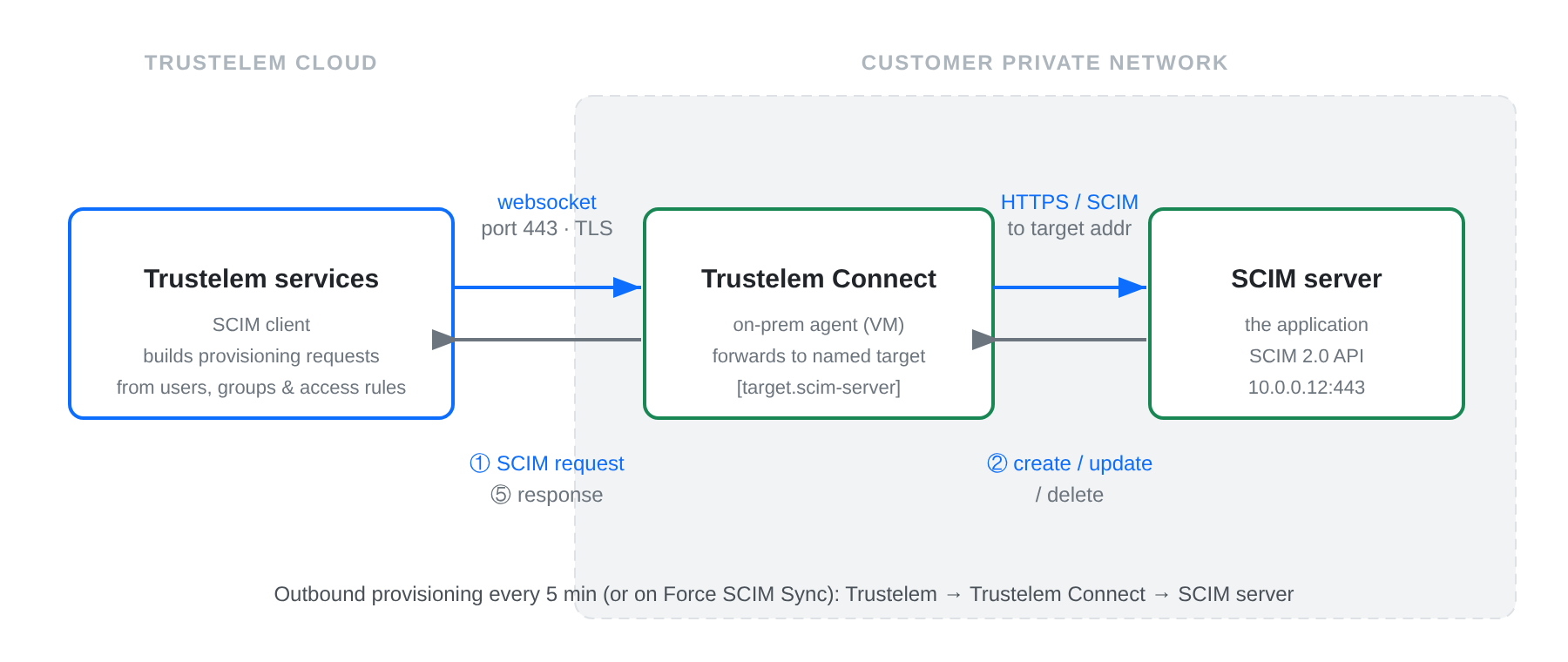
To do so, a connector, **Trustelem Connect**, is installed on a local customer server. Unlike the LDAP / Radius use case where Trustelem Connect *receives* requests, here Trustelem is the **SCIM client**: it builds the provisioning requests and **Trustelem Connect forwards them** to the SCIM server (typically one that lives on the private network, but any reachable SCIM server works).
[](https://trustelem-doc.wallix.com/uploads/images/gallery/2026-06/TBwscim-architecture.png)
1/ During the setup, **Trustelem Connect** opens a **websocket** to **Trustelem services** using **port 443**.
**Note:** with the websocket, information is encrypted by TLS protocol and with an additional symmetric encryption.
On the local machine, **Trustelem Connect** is also configured with one or more **targets**. A target is a named destination (a `host:port`) that the agent is allowed to dial — here, your **SCIM server**.
*For instance, I made the setup of Trustelem Connect and declared a target named **scim-server** pointing at **10.0.0.12:443***
2/ On a regular schedule (every **5 minutes**), or when an administrator clicks **Force SCIM Sync**, Trustelem computes the **users and groups** that should exist on the application, based on its **access rules**, and prepares the corresponding SCIM requests (create / update / delete).
3/ **Trustelem** sends each SCIM request to **Trustelem Connect** through the **websocket**, naming the **target** to use.
4/ **Trustelem Connect** opens the connection to the **SCIM server** (in TLS if the base URL is `https://`) and forwards the request to the address configured for that target.
**Note:** the generic agent only dials targets it has been explicitly configured with, so a request to an undeclared target is refused — it will never dial an arbitrary address.
5/ **Trustelem Connect** forwards the SCIM server's answer back to **Trustelem** through the **websocket**, and Trustelem records the result of the synchronization.
*With the previous example:*
* *If a user gains a **SCIM access-rule** for the application, Trustelem **creates** (or updates) the user on the SCIM server.*
* *If a user loses the access-rule, Trustelem **deletes** (or deactivates) the user on the SCIM server.*
#### Prerequisites
* Prepare a VM, Windows Server or Linux, with minimal resources for the OS
* If you already have a VM for Trustelem ADConnect or for a LDAP / Radius connector, you can use the same
* If you have only one VM which is down, the provisioning is down too..
* The recommendation is 2 VM at least, to have a failover system
* Download Trustelem Connect on the VM (.exe or .tgz depending of the OS)
* [https://dl.trustelem.com/connect/](https://dl.trustelem.com/connect/)
* the download buttons (Windows / Linux) are also available directly on the **service** page in your administration interface
* The flow from the VM to the **SCIM server** should be opened for the IP / port the SCIM API listens on
* usually tcp port 443 (https) or 8080
* The flow from the VM to the **Trustelem production servers and relay** (**https://admin.trustelem.com**) should be opened, on **tcp port 443**, towards the following IPs:
* Current production servers: **185.4.44.22**, **185.4.46.20**, **185.4.46.21**, **185.4.46.22**
* New production servers (replacement): **185.4.44.114**, **185.4.44.117**
* Relay endpoints: **98.66.169.89** (relay-fr-01.wallix.com), **20.39.241.157** (relay-fr-02.wallix.com)
* The **SCIM credentials** of the application (a **bearer token**, or a **username / password** for Basic authentication) and the **base URL** of its SCIM API
#### Setup TrustelemConnect on a Windows machine
In your Trustelem administration page:
* Go to the **Services** tab.
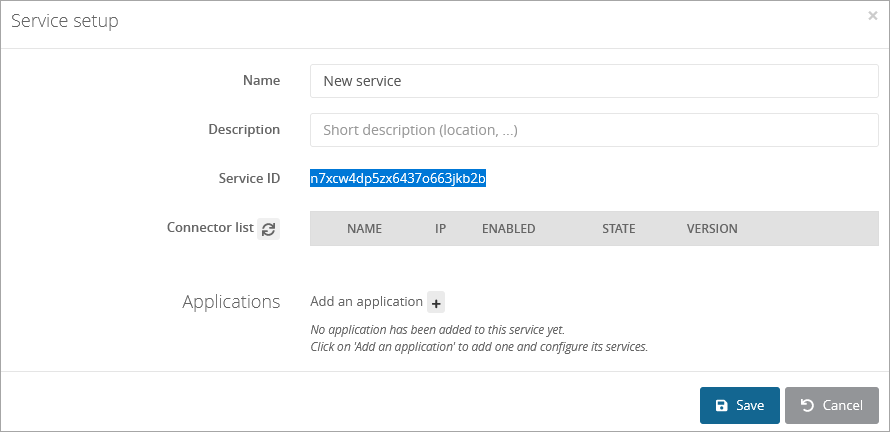
* Click on the button **+ Create a service** and copy the **service ID**.
[](https://trustelem-doc.wallix.com/uploads/images/gallery/2022-06/create-service.png)
On your server:
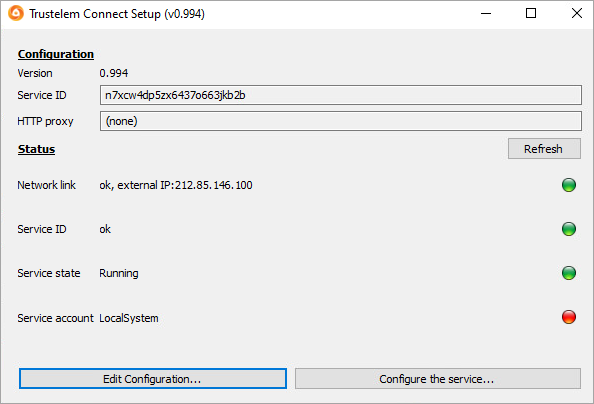
* Start the setup (Trustelem Connect.exe), and paste your **service ID**.
* If you have a proxy, complete the field **HTTP Proxy** with the value:
https://username:password@proxy_IP:proxy_port
* Click on **Validate the Configuration**
[](https://trustelem-doc.wallix.com/uploads/images/gallery/2022-06/setup-ldap.png)
* Start the service.
In your Trustelem administration page
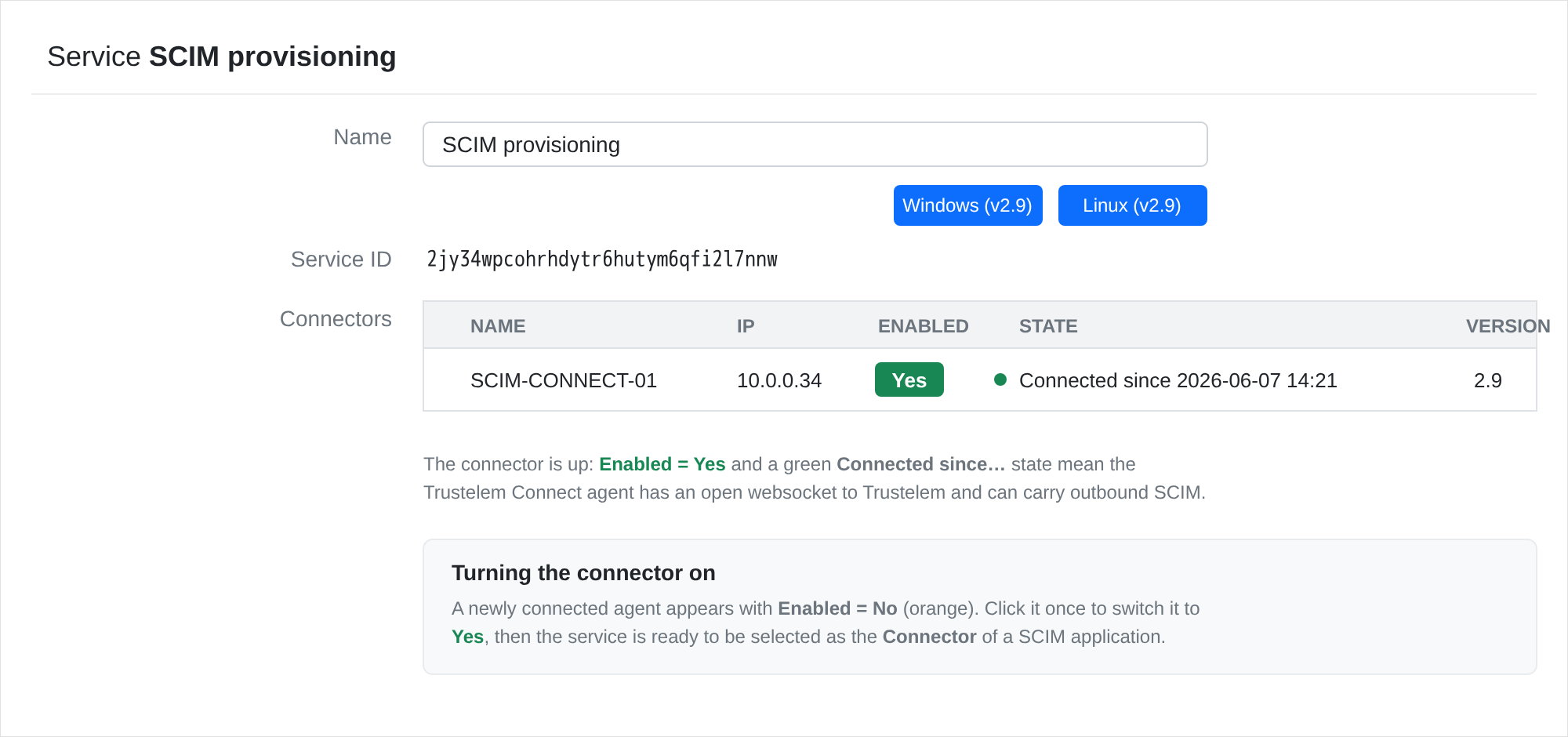
* Refresh your **Services** page.
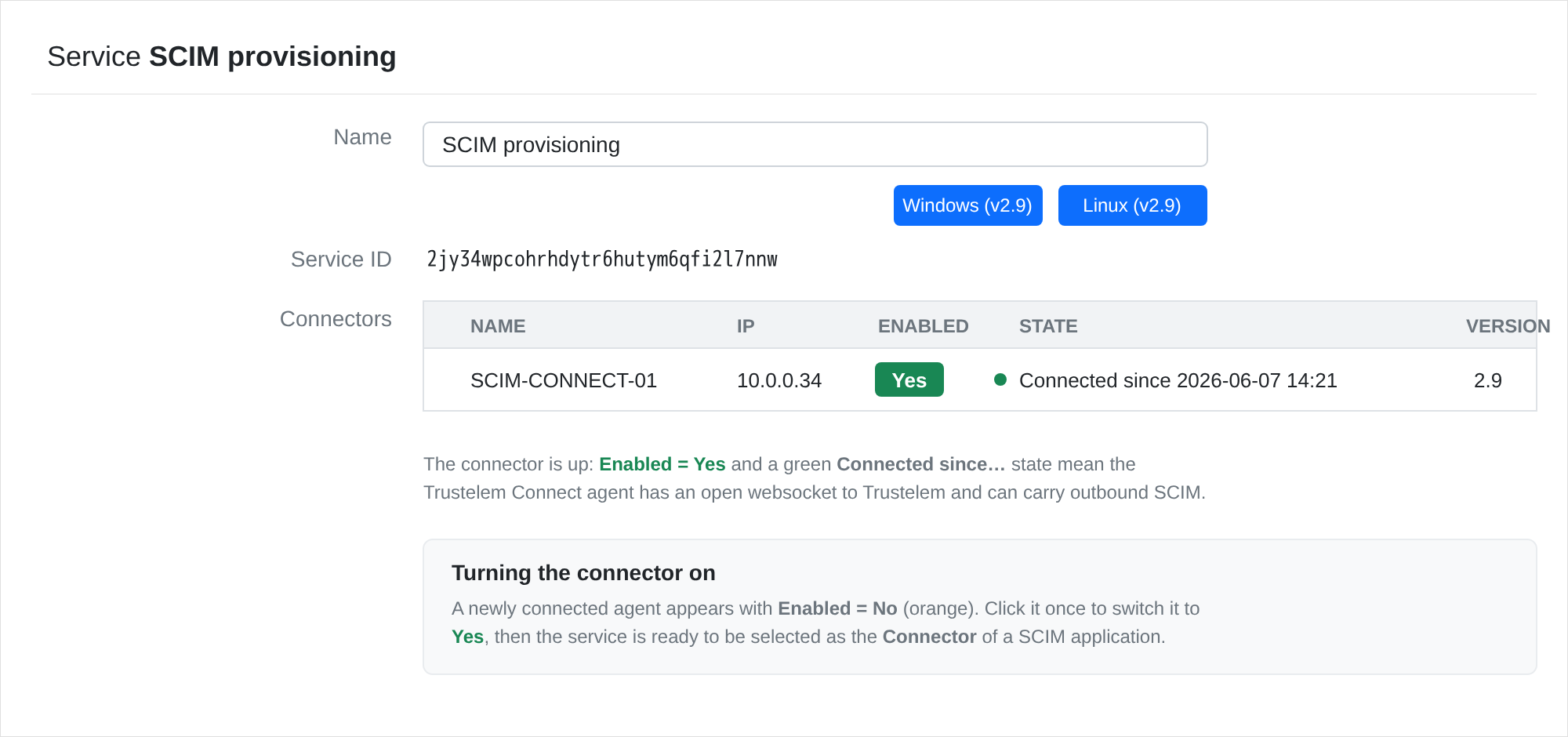
* Turn on the service by clicking on **No**.
[](https://trustelem-doc.wallix.com/uploads/images/gallery/2026-06/lbgscim-connector-connected.png)
You now have a functional connector.
#### Setup Trustelem Connect on a Linux machine
In your Trustelem administration page:
* Go to the **Services** tab.
* Click on the button **+ Create a service** and copy the **service ID**.
[](https://trustelem-doc.wallix.com/uploads/images/gallery/2022-06/create-service.png)
On your server:
* Install the connector as a service with the **setup.sh** script launch with **root privilege**.
* To complete the configuration, edit /opt/wallix/trustelem-connect/config.ini file containing the synchronization id.
* A sample minimal config.ini would be:
```
service_id = 2jy34wpcohrhdytr6hutym6qfi2l7nnw
state_dir = run/
# if there is a proxy
proxy = https://username:password@proxy_IP:proxy_port
```
* The run folder must have read write rights for the trustelem user.
* After that, you can start the service with: **systemctl start trustelem-connect.service**
* The service will run with the user trustelem
In your Trustelem administration page
* Refresh your **Services** page.
* Turn on the service by clicking on **No**.
[](https://trustelem-doc.wallix.com/uploads/images/gallery/2026-06/scim-connector-connected.png)
You now have a functional connector.
#### Declare the SCIM server as a connector target
Outbound SCIM never dials the remote directly: Trustelem Connect forwards the request to a **named target**. You declare that target on the machine running the connector with the **set-target** command, then you reference it by name in the application setup.
On your server, from the Trustelem Connect folder:
```
./TrustelemConnect set-target
```
*With the previous example:*
```
./TrustelemConnect set-target scim-server 10.0.0.12:443
```
* **<name>** is a free label — you will type the exact same value in the application setup (field **Connector target name**).
* **<host:port>** is the address of the **SCIM server** as seen from the connector machine.
* The command writes a `[target.]` section in **config.ini** and enables outgoing connections; on Linux you can also edit config.ini directly:
```
outgoing_allowed = "true"
[target.scim-server]
addr = 10.0.0.12:443
```
* Useful options:
* `-always-tls` / `-no-tls` to force or disable TLS regardless of the base URL scheme
* `-insecure-allow-skip-tls-check` to accept a self-signed certificate (must be combined with **Skip TLS certificate check** in the application setup)
* `-override` to clear an existing target before re-applying it
* Restart the service so the new target is advertised to Trustelem.
#### Setup an application to provision through SCIM
**On your Trustelem administration page:**
* Go to the **Apps** tab.
* Either **open an existing application** to add SCIM provisioning to it, or click on **+ Add an application** to create a new one.
* If you create a new application, choose either a pre-integrated application or a generic model depending on your need.
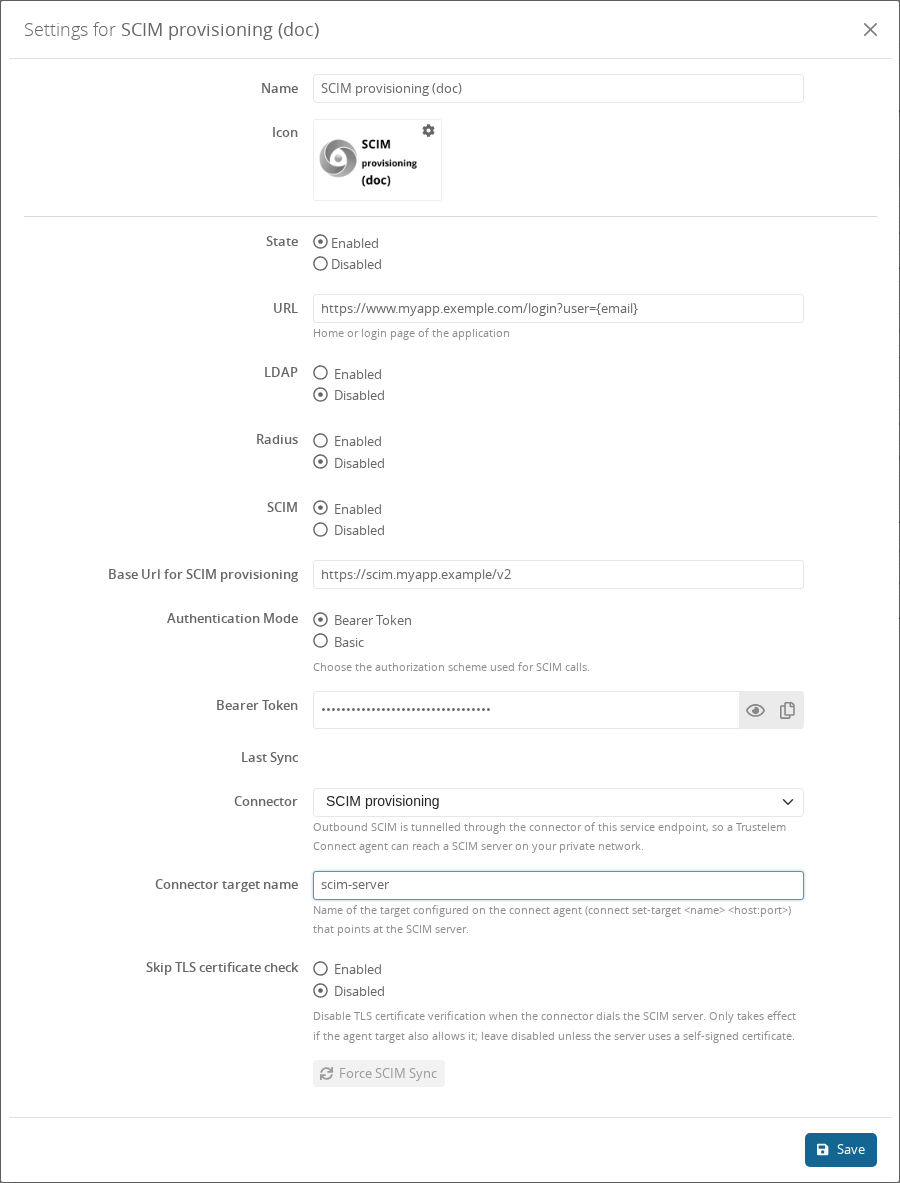
* Turn on **SCIM**, then fill the SCIM section:
Base Url for SCIM provisioning: the base URL of the application's SCIM 2.0 API (e.g.
https://scim.myapp.local/v2
). Its scheme decides whether the connector opens the connection in TLS.
Authentication Mode: Bearer Token or Basic
For Bearer Token: paste the token in the Bearer Token field (the Bearer prefix is added automatically if you omit it).
For Basic: fill Username and Password.
Connector: select the service you created and turned on above. The outbound SCIM traffic is tunnelled through this connector.
./TrustelemCli>Connector target name: type the exact <name> you used with ./TrustelemConnect set-target (e.g. scim-server).
Skip TLS certificate check: leave disabled unless the SCIM server uses a self-signed certificate. It only takes effect if the connector target was also declared with -insecure-allow-skip-tls-check.
* Click on **Save**.
[](https://trustelem-doc.wallix.com/uploads/images/gallery/2026-06/T1vscim-app-settings.png)
Of course, **you need to create the access rules** to define which users will be provisioned to the application
[https://trustelem-doc.wallix.com/books/trustelem-administration/page/access-rules](https://trustelem-doc.wallix.com/books/trustelem-administration/page/access-rules)
Trustelem is now ready to provision users and groups to the application through **Trustelem Connect**.
#### Force a synchronization
By default, Trustelem pushes the SCIM updates **every 5 minutes**. To apply your configuration immediately:
* Open the application, in the SCIM section click on **Force SCIM Sync**.
* A full synchronization runs: Trustelem lists the resources already present on the SCIM server, reconciles them with the users and groups granted by the access rules, and applies the create / update / delete operations.
* The result is reported in the **Last Sync** field and, in case of error, as a message describing the most actionable cause (authentication failure, endpoint not found, no connector available, network error…).
#### Debug
The connector doesn't appear in the setup page on the admin page
* ping **admin.trustelem.com** on the machine running the connector to verify the outgoing flows
* verify the synchronization ID (service ID)
* verify the proxy setup
* if the VM is a Windows machine, verify that you clicked on **Validate** on Trustelem Connect program
The SCIM synchronization is not working
* Read the **Last Sync** message and your **Trustelem Logs page**:
* **no connector available** → the service is not turned on, no agent is connected, or the connector does not advertise the configured target. Verify the ./TrustelemCervice is **On**, that an agent is **Connected**, and that the **Connector target name** matches a `./TrustelemConnect set-target` declared on the agent.
* **authentication failed (401) / forbidden (403)** → check the **Authentication Mode** and the bearer token or username / password.
* **endpoint not found (404)** → check the **Base Url for SCIM provisioning** (path and version, e.g. `/v2`).
* **network error** → the connector cannot reach the SCIM server: check the target `host:port`, the flow from the connector VM to the SCIM server, and the TLS settings.
* If the SCIM server uses a **self-signed certificate**, declare the target with `-insecure-allow-skip-tls-check` **and** enable **Skip TLS certificate check** in the application; otherwise the TLS handshake fails.
* Verify if the flow from the connector VM to the SCIM server is opened. If you have a doubt, use **Wireshark** on Windows or **tcpdump** on Linux on the connector machine.
**/!\\** tcpdump displays the flow received, before applying local firewall rules. So if you are on Linux and see the requests, you should verify if there is a local firewall.