Multi factors authentication
Contents
- What is a Multi factors authentication?
- Existing 2nd factors on Trustelem
- Second-step passkeys
- Possible authentications depending on the protocols
- Setup
- Create an access-rules for MFA
What is a Multi factors authentication?
There are 3 kinds of authentication factors:
-
Something you know --> password, pin...
-
Something you possess --> smartphone, security key, certificate...
-
Something you are --> fingerprint, face, eye iris, voice...
A Multi factors authentication is the combination of 2 factors. Example: login + password + email one time password = MFA
BUT a strong authentication is the combination of 2 different kinds of factors.
The previous example is not a strong authentication
Example: login + password + mobile phone application one time password = strong authentication
Existing 2nd factors on Trustelem
Trustelem factors, used in addition to the password, are:
-
SMS: users receive a SMS with a code on their mobile phone - additional cost, not available by default
-
TOTP Authenticator: user can use any kind of Time based One Time Password (TOTP) which is a code provide:
- by an application (Google Authenticator, Microsoft Authenticator...)
- or a device (usually setup with NFC).
-
WALLIX Authenticator: the mobile (IOS/Android) and desktop application made by Trustelem; if the network is up the user receives a push notification, otherwise he can use a TOTP

-
Second-step passkey: user presents a FIDO passkey (security key, Windows Hello, smartphone...) after his password. This factor was previously named Security key: keys enrolled under the old name keep working, there is nothing to do. See the dedicated section below.
-
Email: a code is sent using an email address to be used a second factor. This is not a strong authentication, so it is disable by default
Notes:
-
The desktop version of WALLIX Authenticator can be downloaded in the Microsoft store only.
It uses a specific Microsoft protocol for push notification named WNS.
It can be necessary to open some flow for this protocol in the firewall.
The needed URLs can be found here https://learn.microsoft.com/fr-fr/windows/apps/design/shell/tiles-and-notifications/firewall-allowlist-config -
TOTP codes are calculated using a secret and the time of the device. If the time is incorrect, the code will not work.
Second-step passkeys
A second-step passkey is a FIDO / WebAuthn credential used as a 2nd factor, right after the password. Any passkey-capable device can hold one:
- a removable security key (YubiKey, Feitian...)
- a built-in authenticator (Windows Hello, Touch ID / Face ID)
- a smartphone used cross-device: the user scans a QR code and validates on the phone
- a password manager (Bitwarden, 1Password, iCloud Keychain, Google Password Manager...)
Enabling and enrolling
The Second-step passkey factor is enabled and enrolled exactly like the other factors (see Setup): Login and User can reset token parameters, manual enrollment by an administrator, or enrollment campaigns.
A user who only has a one-step passkey still counts as "to enroll" for a second-step campaign: the two classes are never interchangeable.
Security policy
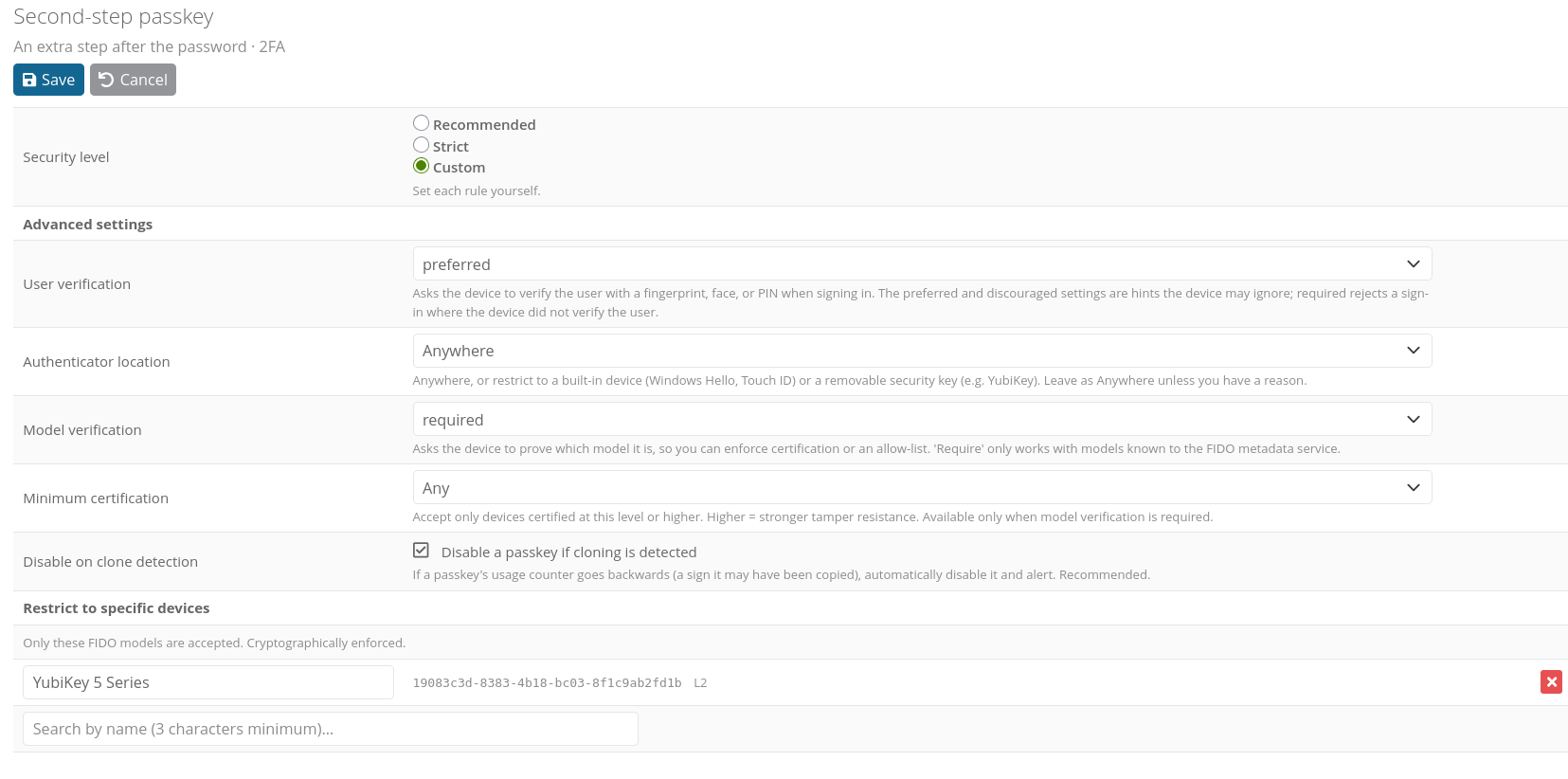
In Security settings, the Passkeys part contains one policy per class. Open Second-step passkey to edit its policy. There are 3 security levels:
- Recommended (applied by default): balanced protection suiting most organizations, nothing to change.
- Strict: hardware level, blocks synced and uncertified devices.
- Custom: set each rule yourself:
| Rule | Effect |
|---|---|
| User verification | Ask the device for a fingerprint, face or PIN. For a second-step passkey this is a hint the device may ignore: the password already carries the other half of the authentication. |
| Where the passkey can live | Anywhere, built-in device only, or removable security key only. |
| Verify the device's make and model | Asks the device to prove its model (attestation), enabling certification checks and device lists. |
| Minimum FIDO certification | Accept only devices certified at this level or higher by the FIDO Alliance. Requires model verification. |
| Restrict to specific devices | List of allowed FIDO models, cryptographically enforced. |
| Restrict to specific providers | List of allowed passkey providers (Bitwarden, 1Password...). Provider names are self-reported, so pair it with certification for a hard boundary. |
| Disable a passkey if cloning is detected | If a passkey's usage counter goes backwards, disable it automatically and alert. |
The policy is checked at enrollment: a device which doesn't comply is rejected immediately with an explicit message, instead of being registered and then refused at every login. It is checked again at every login, so tightening the policy applies to already enrolled passkeys at their next use.
Certification and model data come from the FIDO Alliance Metadata Service (MDS), which Trustelem embeds and keeps up to date.
Usage examples
- Standard rollout: keep the Recommended level, enable the factor for the "Employees" group, then create an enrollment campaign with Automatic enroll during login. Every employee is invited to register a passkey at his next login.
- Hardware keys only: choose Custom and set Where the passkey can live = removable security key, Verify the device's make and model = required, Minimum FIDO certification = L1. Synced passkeys and built-in authenticators are refused at enrollment, only certified removable keys pass.
- Only company-issued YubiKeys: enable Restrict to specific devices and pick the YubiKey 5 Series models in the list (it only offers models compatible with the other rules you set). Users can register several keys of the allowed models, for example a main key and a backup.
- Allowing a password manager: enable Restrict to specific providers and add Bitwarden. This steers users to the approved tool, but the provider name is self-reported by the client: it is not a cryptographic guarantee, unlike the device list.
Notes:
- A passkey belongs to one account. A credential already registered on any account of the platform is refused at enrollment. If the user re-registers his own device he gets a clear "already registered" message; if the credential belongs to someone else he gets a neutral refusal and an audit event
webauthn_duplicate_credentialis written in the logs, visible in the log view and forwarded to your SIEM with the other 2nd factor events. Deleting a passkey releases it for re-enrollment. - Cross-device sign-in is supported: the user can answer the 2nd factor step with his phone through the QR code, and has 5 minutes to complete it.
Possible authentications depending on the protocols
Web logging - Admin page + SAML / OpenID Connect applications
The user provides his Trustelem login + password, then the 2nd factor.
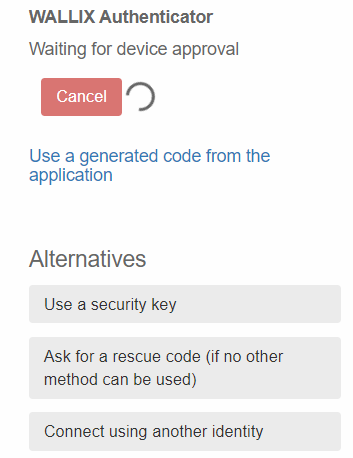
If he has multiple 2nd factors, he can choose to use another one:
LDAP applications
The LDAP protocol is not designed to do MFA. But with Trustelem, there are 2 ways of doing it:
-
You can use push notifications with LDAP.
The user provides his Trustelem login + password in the application, then Trustelem sends a push notification and answer to the LDAP request after the notification validation.
To make it works, be sure to set a response time / timeout long enough on your application. -
You can use a code with LDAP (TOTP or OTP).
The user provides his Trustelem login, and in the same form the password and the code sticked together. -
You can't use second-step passkeys: the protocol can't talk to the passkey device.
Radius applications
Radius authentications have lot of possibilities:
- login + password + 2nd factor using Radius
The user provides his Trustelem login + password, then his 2nd factor - login + password using another protocol + 2nd factor using Radius
The user provides a login + password from another source, then Trustelem 2nd factor - login + password then no answer from Trustelem before the validation of a push notification
The user provides his Trustelem login + password then validate a push notification - login + password and the code sticked together
The user provides his Trustelem login + password and code sticked together - You can't use second-step passkeys: the protocol can't talk to the passkey device.
Setup
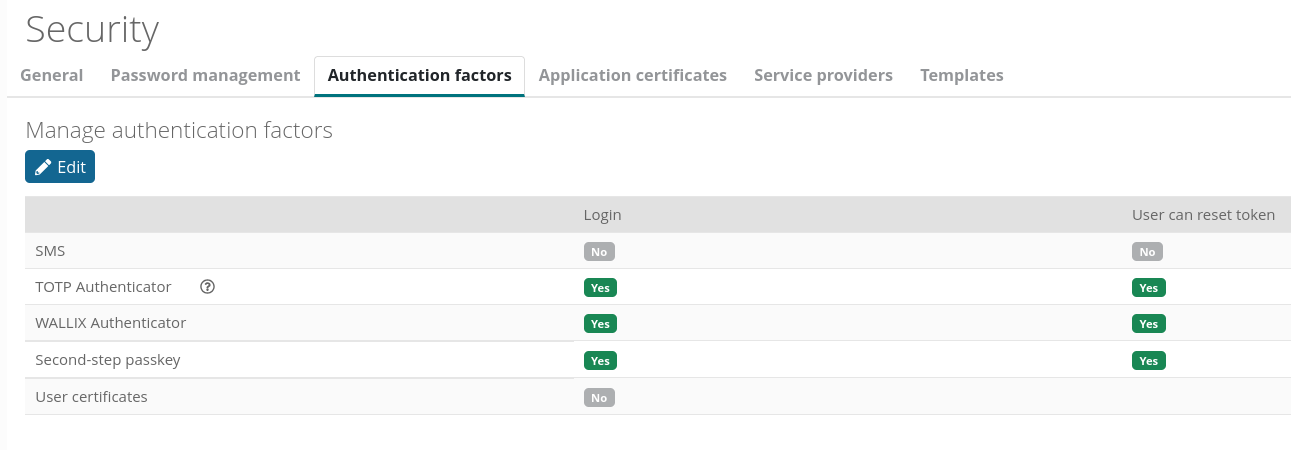
To setup the allowed factors, , go on Trustelem admin page, Security settings and Authentication factors
The first part, Manage authentication factors, has 2 parameters: Login, and User can reset token
Login parameter
For a chosen factor, you can activate the option login for all users or for specific users.
When it's done:
- Users can use the selected factor for a multi factors authentication.
- An administrator can do a manual enrollment for users.
User can reset token parameter
For a chosen factor, you can activate the option User can reset token for all users or for specific users.
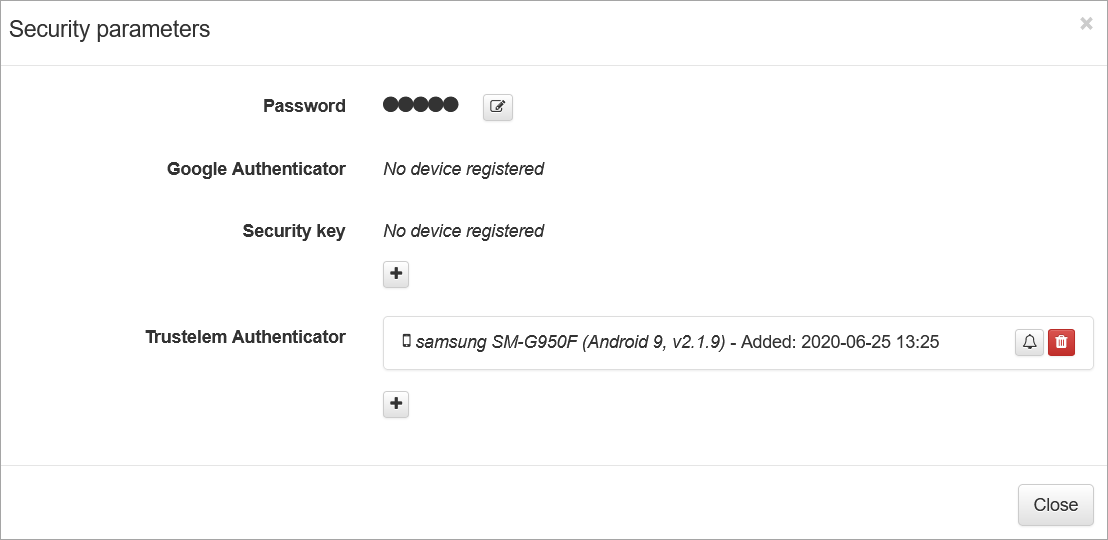
When it's done, the defined users can use their dashboard to reset this factor:
https://mydomain.trustelem.com/#security
When you have enabled the chosen factors, you can start the enrollment.
Manual enrollment using dashboard
This has to be done by a Trustelem administrator

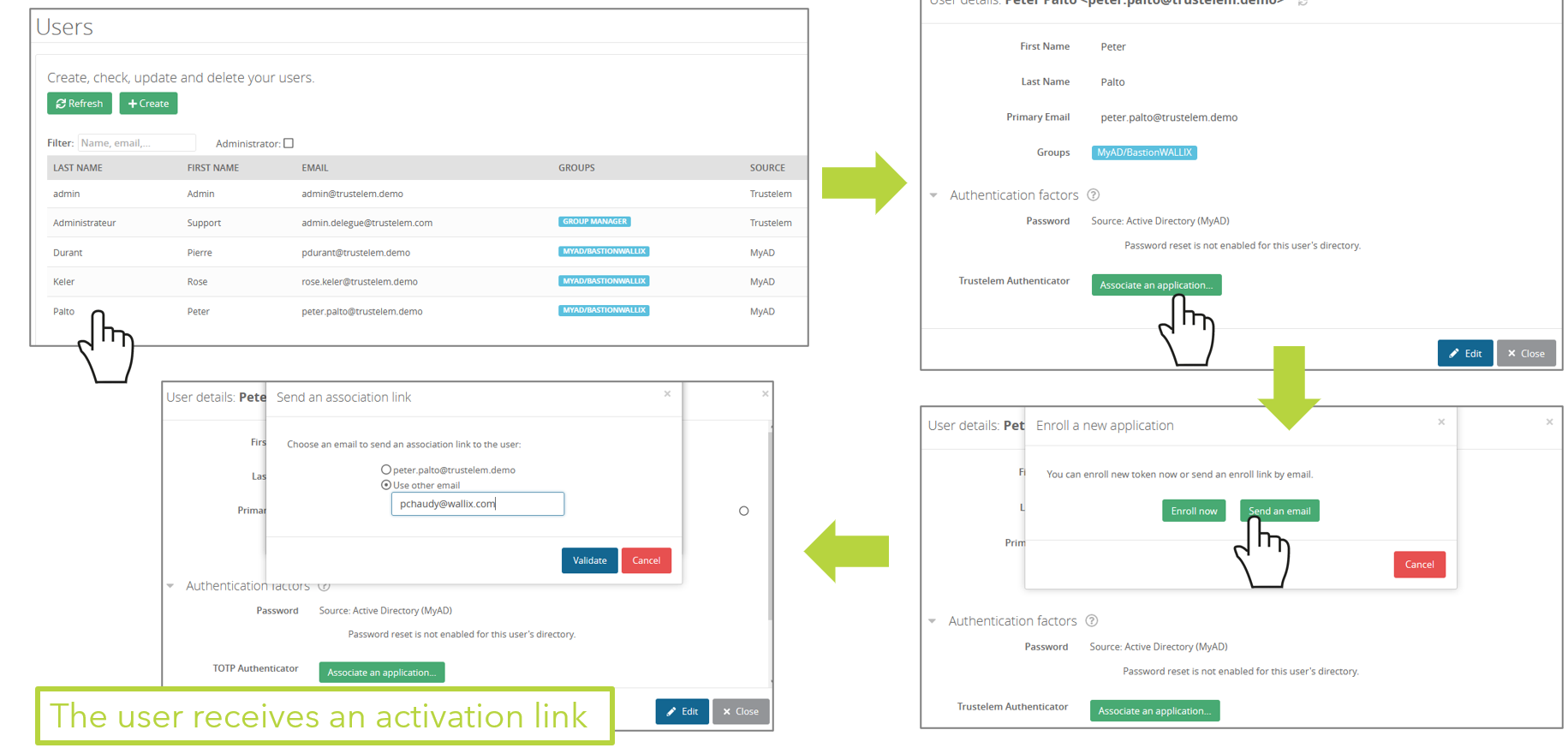
Manual enrollment using email
This has to be done by a Trustelem administrator. You can send the enrollment link to Trustelem Primary Email or choose another one.
Enrollment campaign
- The enrollment can be using campaigns.
- Users in the selected groups will be involved in the enrollment process only if they don't already have a 2nd factor.
- If you select multiple factors, users will have a selector to enroll only one of them.
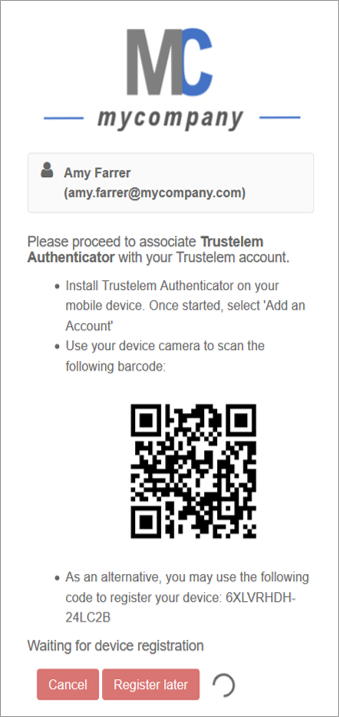
- if you enable Automatic enroll by email emails with the enrollment link are sent automatically. If you don't, you have buttons to do it manually.
- If you enable the Automatic enroll during login, every time users authenticate on Trustelem login page, they will have a window asking them to enroll a new factor.
They can skip the enrollment, but the window will continue to appear after the next authentications until they do the enrollment.
Create an access-rules for MFA
If you already have users and applications, you can now create access-rules in order to force multi factors authentication.
You can find the detail using the URL: access rules