# LDAP-Radius - Trustelem Connect

#### Contents
* [How does it work?](https://trustelem-doc.wallix.com/books/trustelem-administration/page/ldap-radius-trustelem-connect#bkmrk-how-does-it-work%3F)
* [Prerequisites](https://trustelem-doc.wallix.com/books/trustelem-administration/page/ldap-radius-trustelem-connect#bkmrk-prerequisites)
* [Setup Trustelem Connect on a Windows machine](https://trustelem-doc.wallix.com/books/trustelem-administration/page/ldap-radius-trustelem-connect#bkmrk-setup-trustelemconne)
* [Setup Trustelem Connect on a Linux machine](https://trustelem-doc.wallix.com/books/trustelem-administration/page/ldap-radius-trustelem-connect#bkmrk-setup-trustelem-conn)
* [Setup an application to use Trustelem Connect](https://trustelem-doc.wallix.com/books/trustelem-administration/page/ldap-radius-trustelem-connect#bkmrk-setup-an-application)
* [Debug](https://trustelem-doc.wallix.com/books/trustelem-administration/page/ldap-radius-trustelem-connect#bkmrk-debug)


#### How does it work?

The goal is to use Trustelem database to provision and or authenticate users on an application using LDAP or Radius.  
To do so, a connector, **Trustelem Connect**, is installed on a local customer server and has the role of **LDAP server** / **Radius server**. When it receives a request (LDAP search, LDAP bind, Radius Access request, Radius Challenge request) then it sends the request to Trustelem.

[![schema-tlm-connect.png](https://trustelem-doc.wallix.com/uploads/images/gallery/2023-10/scaled-1680-/schema-tlm-connect.png)](https://trustelem-doc.wallix.com/uploads/images/gallery/2023-10/schema-tlm-connect.png)

1/ During the setup, **Trustelem Connect** opens a **websocket** to **Trustelem services** using **port 443**.  
 **Note:** with the websocket, information is encrypted by TLS protocol and with an additional symmetric encryption.  
 **Trustelem Connect** also opens on the local machine, TCP or UDP ports on a specified local IP, based on the Trustelem setup.  
One opened port matches one protocol for one application on Trustelem  
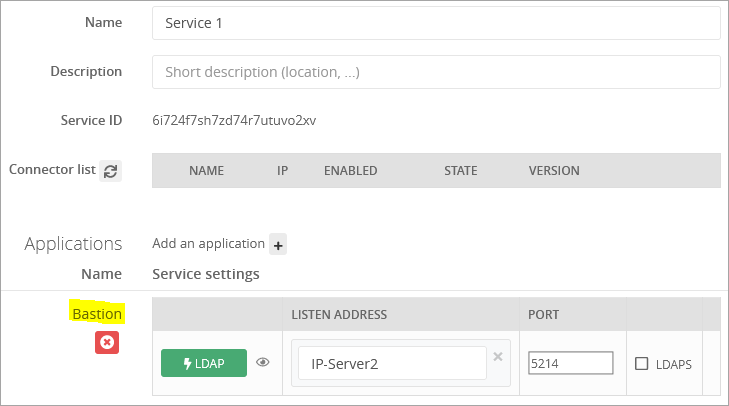
*For instance, I made the setup of Trustelem Connect, linked a Bastion application, and choose to use the port **5214** on the IP **IP-Server2** for the protocol **LDAP***

[![portLDAP-RADIUS.png](https://trustelem-doc.wallix.com/uploads/images/gallery/2022-06/scaled-1680-/portldap-radius.png)](https://trustelem-doc.wallix.com/uploads/images/gallery/2022-06/portldap-radius.png)

2/ The application makes a search/authenticate request and sends it to **Trustelem Connect** on the defined port using **LDAP or Radius**.  
*With the previous example, the protocol is **LDAP**, the IP of the LDAP server is **IP-Server2**, the port is **5214***

3/ **Trustelem Connect** uses the **websocket** to send the request to **Trustelem services**:

4/ As said before, on Trustelem the port is associated to a specific protocol and application.   
Trustelem examines the **access rules** related to these protocol and application, and returns the answer to **Trustelem Connect** using the **websocket**.
<br/><br/>
*With the previous example:*
 * *If Trustelem receives a **search request**, it returns **users who have an LDAP access-rule** for the application **Bastion**.*
 * *If Trustelem receives an **authentication request**, it returns the **validation/invalidation** of the credentials based on the **Bastion LDAP access rule***

5/ **Trustelem Connect** forwards the answer to the application using **LDAP or Radius**.

#### Prerequisites
* Prepare a VM, Windows Server or Linux, with minimal resources for the OS
  * If you already have a VM for Trustelem ADConnect, you can use the same
  * If you have only one VM which is down, the link to your application is down too..
  * The recommendation is 2 VM at least, to have a failover system
* Download Trustelem Connect on the VM (.exe or .tgz depending of the OS)
  * [https://dl.trustelem.com/connect/](https://dl.trustelem.com/connect/)
* The flow from the application to the VM should be opened for the IP/port/protocol defined in the Service setup
  * usually tcp port 2001 for LDAP, and udp port 1812 for Radius
* The flow from the VM to **https://admin.trustelem.com** should be opened (IP: 185.4.44.22)
  * tcp port 443
* (optional) A service account with "read only" rights should be created on your Active Directory

#### Setup TrustelemConnect on a Windows machine

In your Trustelem administration page:

* Go to the **Services** tab.  

* Click on the button **+ Create a service** and copy the **service ID**.

[![create_service.png](https://trustelem-doc.wallix.com/uploads/images/gallery/2022-06/scaled-1680-/create-service.png)](https://trustelem-doc.wallix.com/uploads/images/gallery/2022-06/create-service.png)

On your server:

* Start the setup (Trustelem Connect.exe), and paste your **service ID**.  
* If you have a proxy, complete the field **HTTP Proxy** with the value:  
https://username:password@proxy_IP:proxy_port 
* Click on **Validate the Configuration**

[![setup_ldap.png](https://trustelem-doc.wallix.com/uploads/images/gallery/2022-06/scaled-1680-/setup-ldap.png)](https://trustelem-doc.wallix.com/uploads/images/gallery/2022-06/setup-ldap.png)

* Then if you want to use **LDAPs**, on the Trustelem Connect folder, add a **config.ini** file and provide the following information (adapted to your own repository and your own certifiates) :
```
tls_cert="C:\Program Files (x86)\Trustelem\cert.pem"
tls_cert_key="C:\Program Files (x86)\Trustelem\key.pem"
```

* Start the service.


In your Trustelem administration page

* Refresh your **Services** page.

* Turn on the service by clicking on **No**.

[![setup2_ldap.png](https://trustelem-doc.wallix.com/uploads/images/gallery/2022-06/scaled-1680-/setup2-ldap.png)](https://trustelem-doc.wallix.com/uploads/images/gallery/2022-06/setup2-ldap.png)

You now have a functional connector.

#### Setup Trustelem Connect on a Linux machine

In your Trustelem administration page:

* Go to the **Services** tab.  

* Click on the button **+ Create a service** and copy the **service ID**.

[![create_service.png](https://trustelem-doc.wallix.com/uploads/images/gallery/2022-06/scaled-1680-/create-service.png)](https://trustelem-doc.wallix.com/uploads/images/gallery/2022-06/create-service.png)

On your server:
* Install the connector as a service with the **setup.sh** script launch with **root privilege**.
* To complete the configuration, edit /opt/wallix/trustelem-connect/config.ini file containing the synchronization id.
* A sample minimal config.ini would be:
```
service_id = 2jy34wpcohrhdytr6hutym6qfi2l7nnw
state_dir = run/
# if there is a proxy
proxy = https://username:password@proxy_IP:proxy_port
```
* The run folder must have read write rights for the trustelem user.
* You can add your own X509 certificate for ldaps and starttls. Accepted format is PEM.
```
tls_cert = run/connector.crt
tls_cert_key = run/connector.key
```
* After that, you can start the service with: **systemctl start trustelem-connect.service**
* The service will run with the user trustelem

In your Trustelem administration page

* Refresh your **Services** page.

* Turn on the service by clicking on **No**.

[![setup2_ldap.png](https://trustelem-doc.wallix.com/uploads/images/gallery/2022-06/scaled-1680-/setup2-ldap.png)](https://trustelem-doc.wallix.com/uploads/images/gallery/2022-06/setup2-ldap.png)

You now have a functional connector.

#### Setup an application to use Trustelem Connect
**Note:** for [WALLIX Bastion](https://trustelem-doc.wallix.com/books/trustelem-applications/page/wallix-bastion) and [WALLIX Access Manager](https://trustelem-doc.wallix.com/books/trustelem-applications/page/wallix-access-manager), you should watch the dedicated documentation instead of this chapter.

<u>**On your Trustelem administration page:**</u>

* Go to the **Apps** tab.

* Click on **+ Add an application**

* Choose either a pre-integrated application or a generic model depending on your need.  
*If you want to use only LDAP / Radius (no additional SAML/OpenID Connect) the generic **Basic no SSO** model should be used*.

* Turn on LDAP and/or Radius.

[![ldap-app.png](https://trustelem-doc.wallix.com/uploads/images/gallery/2022-07/scaled-1680-/ldap-app.png)](https://trustelem-doc.wallix.com/uploads/images/gallery/2022-07/ldap-app.png)

* Go back to the previously configured **service** and click on **Add an application +**

* Click on LDAP and/or Radius button(s) to enable the protocol, then enter the **listen address** and **port**  
  Notes:
    * the listen address can be **localhost**, all existing IP address on the machine = **\***, or a specific IP = **...**
    * this will open the defined udp (Radius) or tcp (LDAP) port on the machine running **Trustelem Connect** on the IP 127.0.0.1 (localhost) OR on all local IPs (\*) OR on a specific local IP (...)
    * if you have a dedicated VM for the connector, choose **\***

* If you have setup **Trustelem Connect** to use LDAPS, then check **LDAPS**
* Click on **Save**

[![setup3_ldap.png](https://trustelem-doc.wallix.com/uploads/images/gallery/2022-06/scaled-1680-/setup3-ldap.png)](https://trustelem-doc.wallix.com/uploads/images/gallery/2022-06/setup3-ldap.png)

Trustelem is now ready to reply to applications sending requests to **TrustelemConnect** with the correct port and IP.

Of course, **you need to create the access rules** to defined which users can use the application  
[https://trustelem-doc.wallix.com/books/trustelem-administration/page/access-rules](https://trustelem-doc.wallix.com/books/trustelem-administration/page/access-rules)

<u>**On your your application setup:**</u>

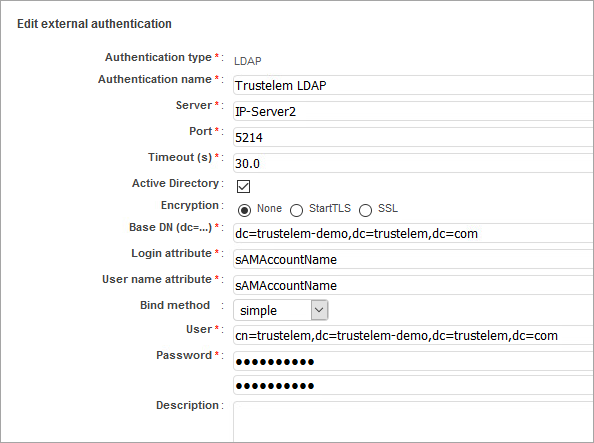
Add a LDAP and/or Radius setup, based on the information provided by Trustelem:

<ul><li>The <strong>IP / FQDN of the LDAP or Radius server</strong> is the IP / FQDN of the machine running <strong>Trustelem Connect</strong></li></ul>

<ul><li>The <strong>port</strong> is defined in the <strong>Services</strong> tab</li></ul>
<ul>
  <li>For a <strong>LDAP server</strong></li>
  <ul>
    <li>The <strong>DN / user account / user account password</strong> are provided on the setup of the Trustelem application. These values can be modified but except for specific situations, <u>there is no reason to change them</u>.</li>
    <li>If you have to choose between an <strong>Active Directory server</strong> or a <strong>LDAP server</strong>, you should choose <strong>Active Directory</strong>. Trustelem tries to replicate how an Active Directory answers.</li>
    <li>A user CN looks like that:<br/>
      <pre>CN=my_user,DC=my_trustelem_domain,DC=trustelem,DC=com</pre>
    </li>
    <li>A group CN looks like that:<br/>
      <pre>CN=my_group,OU=Groups,DC=my_trustelem_domain,DC=trustelem,DC=com</pre>
    </li>
    <li>A <strong>Trustelem local user</strong> must have the login sets to <strong>mail</strong></li>
    <li>A <strong>user synchronized from Active Directory</strong> can have the login sets to <strong>sAMAccountName</strong>, <strong>userPrincipalName</strong> or <strong>mail</strong></li>
    <li>If you want to use <strong>MFA with push notification</strong> with LDAP had a <strong>sufficient timeout</strong> to let the time to users to validate the notification</li>
  </ul>
</ul>
<ul><li>For a <strong>Radius server</strong> the <strong>secret</strong> is provided on the setup of the Trustelem application.</ul></li>

  
*With the example used in the first chapter, the setup is:*

[<img src="https://trustelem-doc.wallix.com/uploads/images/gallery/2022-06/scaled-1680-/portldap-radius.png" style="width:500px;"/>](https://trustelem-doc.wallix.com/uploads/images/gallery/2022-06/scaled-1680-/portldap-radius.png)
[![setup5_ldap.png](https://trustelem-doc.wallix.com/uploads/images/gallery/2022-06/scaled-1680-/setup5-ldap.png)](https://trustelem-doc.wallix.com/uploads/images/gallery/2022-06/setup5-ldap.png)

#### Debug

The connector doesn't appear in the setup page on the admin page
 * ping **admin.trustelem.com** on the machine running the connector to verify the outgoing flows
 * verify the synchronization ID
 * verify the proxy setup
 * if the VM is a Windows machine, verify that you clicked on **Validate** on Trustelem Connect program
 
The LDAP or Radius authentication is no working
 * Go on your **Trustelm Logs page** and see if you have **LDAP or Radius** logs. If yes, the connector is working and you should know why the authentication failed:
   * if the user is not found, is the login attribute correct?
   * if the user doesn't have the permission for the app, is your access rule correct?
   * if the user doesn't have a 2nd factor, is your enrollment process correct?
 * If your application tries to do a **LDAP search** and doesn't have access rule (LDAP 1 or 2 factors), no users will be found but you will not see any logs because it is not a bug
 * Go on your **Service setup** and verify if the listen address is correct (should be **\*** if the VM is dedicated to Trustelem)
 * On the same page, see the **port** defined and the **setup information** clicking on the **eye button**
 * Verify the setup of the application: server IP, port, DN/account/password for LDAP, secret for Radius
 * Verify if the flow from the app to the VM running the connector is opened. If you have a doubt, use **Wireshark** on Windows or **tcpdump** on Linux.  
 **/!\\** tcpdump displays the flow received, before applying local firewall rules. So if you are on Linux and see the requests, you should verify if there is a local firewall.