# Integrated Windows Authentication
Integrated Windows Authentication (IWA) is a Trustelem authentication using the Kerberos token of the user Windows session.
**The point is to authenticate on Trustelem to access the apps, not to add MFA on Windows login.**
For a user point of view, it's a passwordless authentication:
* when a user logs in to his computer, he receives a Kerberos token from Active Directory.
* when the user goes to Trustelem, the browser sends the Kerberos token from the computer to Trustelem.
* Trustelem sends the Kerberos token to Active Directory in order to validate it.
If everything is ok, the user is logged in, with his identity based on the Kerberos token.
#### Trustelem admin configuration
The option **« Integrated Windows Authentication »** under **security tab** ( `https://admin-mydomain.trustelem.com/app#/security`) must be enabled.
In addition, you need to check the following points:
* the IP range of your internal network must be properly set and the user authentication must come from this network (IWA is only enabled on the internal zone).
* the authentications must be done through **`https://mydomain.trustelem.com`** (Trustelem admin console does not allow IWA).
* a Trustelem ADConnect connector linked to your Active Directory (on a Windows machine) must be active and running.
* the user whose Windows session is running must have been previously imported from your Active Directory server.
**Note**: your logs ( `https://admin-mydomain.trustelem.com/app#/logs`) will have a login failure entry with the users identity if a user from your domain is identified by IWA but was not registered with Trustelem.
#### Server configuration
* Connect to one of your servers as a domain administrator.
* Open a command interpreter and enter the following command, after replacing 'trustelem-user' with the name of the user running Trustelem ADConnect connector, and 'mydomain' by the name of your Trustelem subscription domain:
```exp
setspn -s HTTP/mydomain.trustelem.com trustelem-user
```
#### Client configuration
Enabling IWA on your clients is a browser-specific operation.
* Connect to a domain controller as a domain administrator
* Download the file present in this link
***/!\\** if the IWA for Chrome stops working, you may need to redownload the file and reinstall the GPO.*
*For exemple, Chrome version 86 broke compatibility with the previous Chrome GPO.*
* Extract the folder
* Open the Group Policy Management Console (**gpmc.msc**)
* Choose an existing GPO or create a new one
[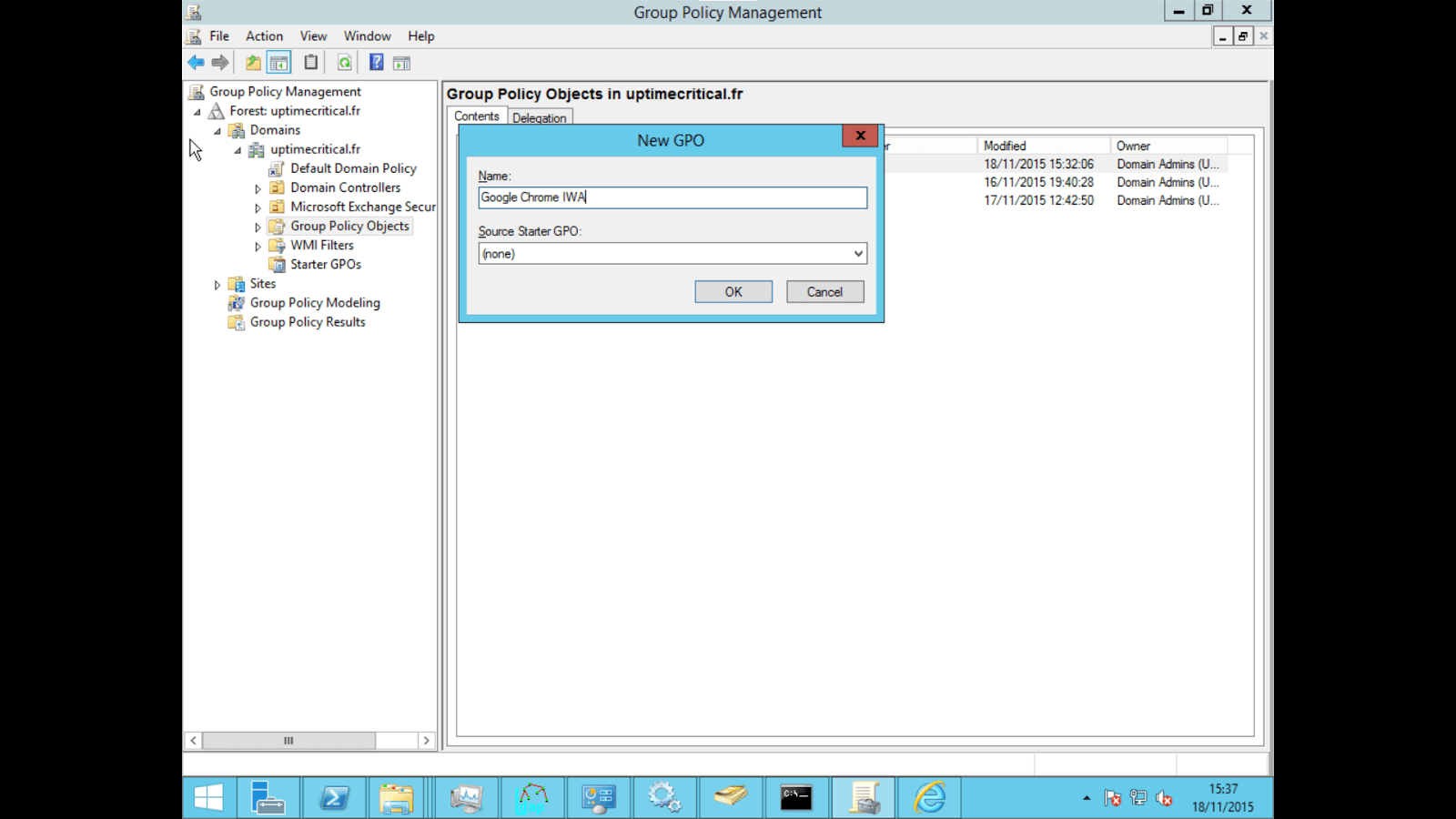](https://trustelem-doc.wallix.com/uploads/images/gallery/2022-06/iwa-google-gpo.png)
* Edit the policy (Right click > Edit)
* Navigate to **User Configuration/Policies/Administrative Template**, right click > **"Add/Remove a template"**
* Click on **"Add"** and select the file in the previously extracted folder (**policy_template/windows/adm/{langue}/chrome.adm**)
[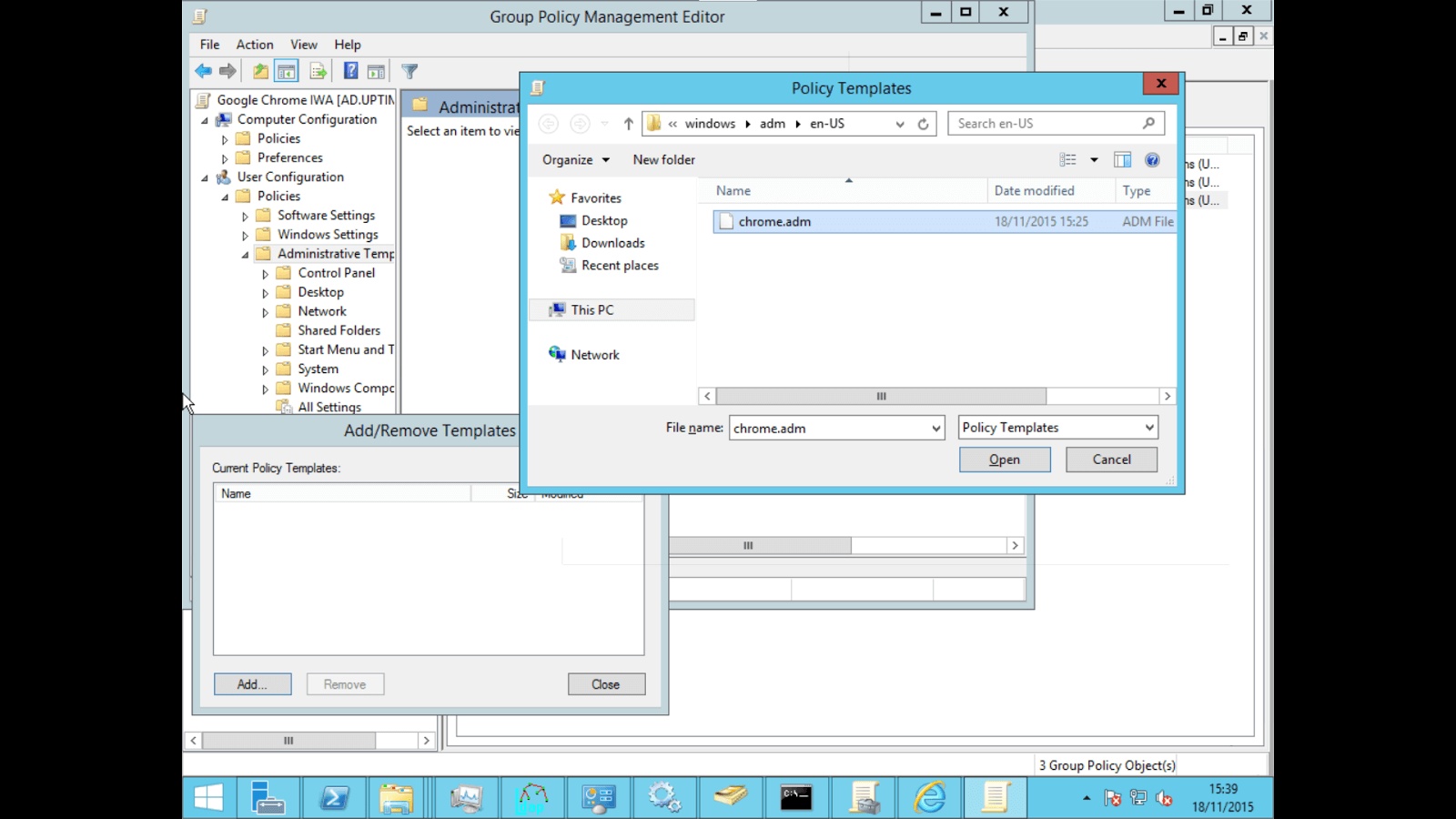](https://trustelem-doc.wallix.com/uploads/images/gallery/2022-06/iwa-chrome-add-adm.png)
* Navigate to **User Configuration/Policies/Administrative Template/Classic Administrative Templates(ADM)/Google/Google Chrome/HTTP Authentication/Authentication server whitelist**, right click > **"Edit"**.
[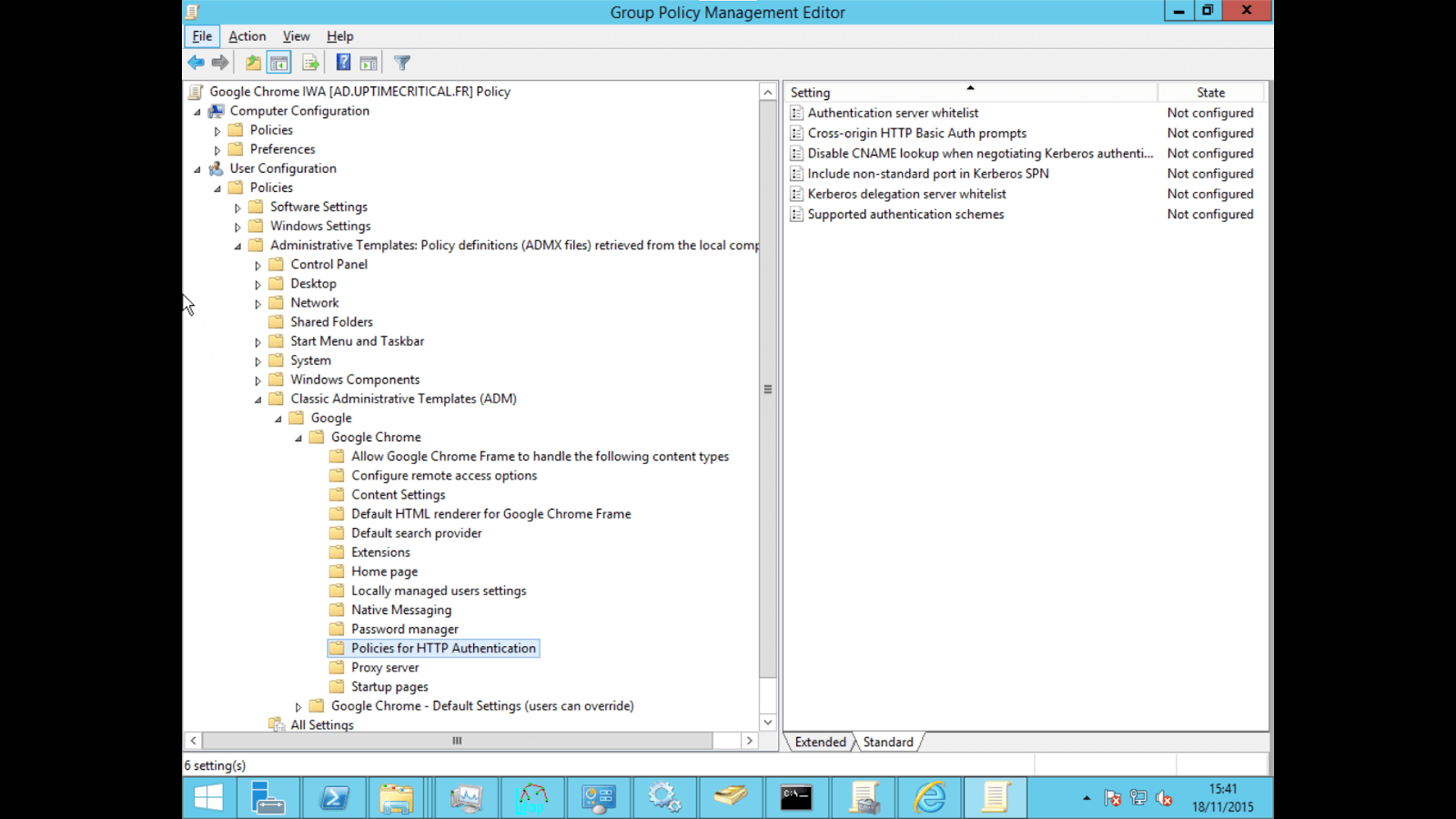](https://trustelem-doc.wallix.com/uploads/images/gallery/2022-06/iwa-chrome-select.png)
* Click on **"Enabled"** and enter **"*.trustelem.com"** in the value field
[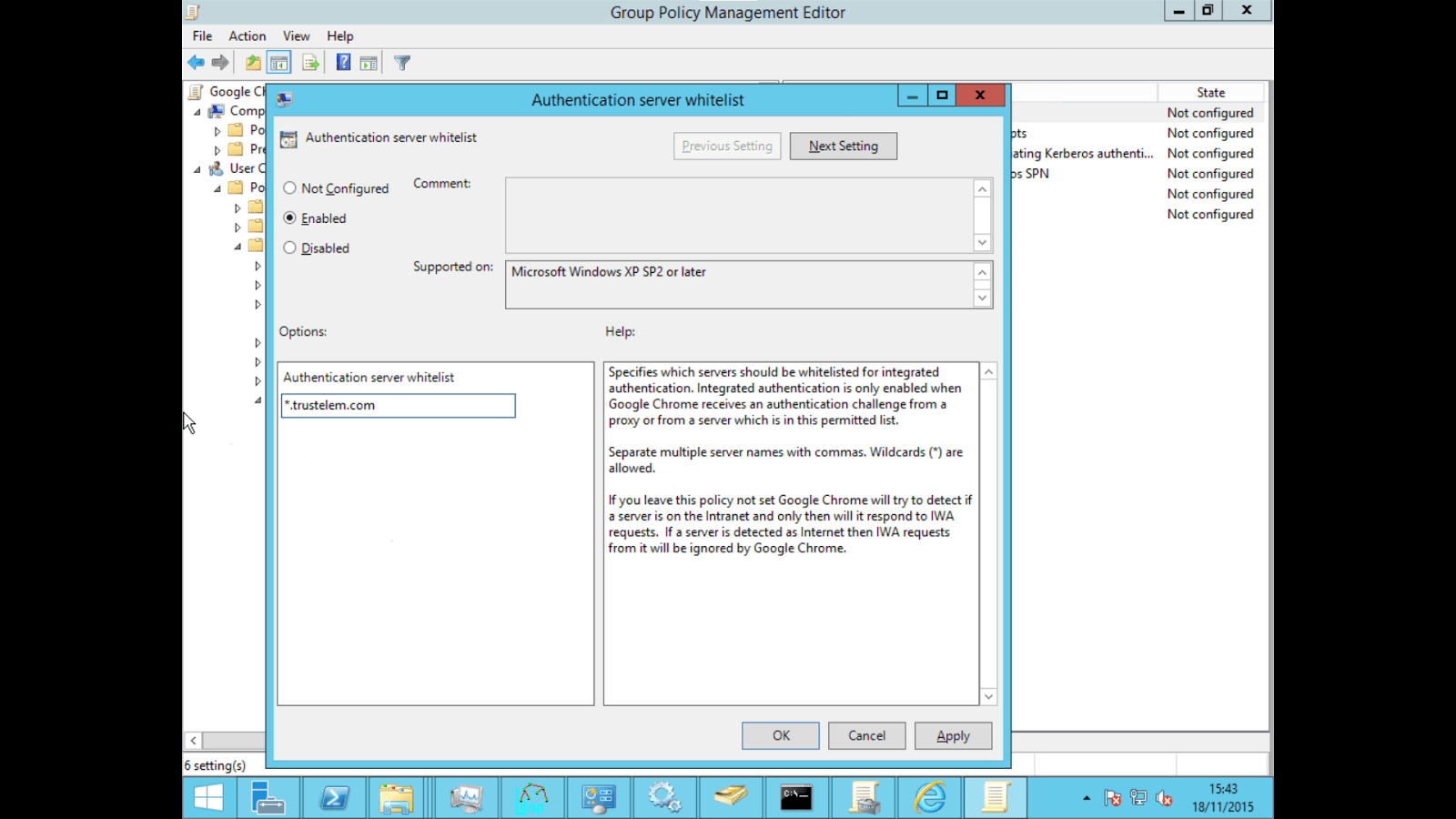](https://trustelem-doc.wallix.com/uploads/images/gallery/2022-06/iwa-chrome-whitelist.png)
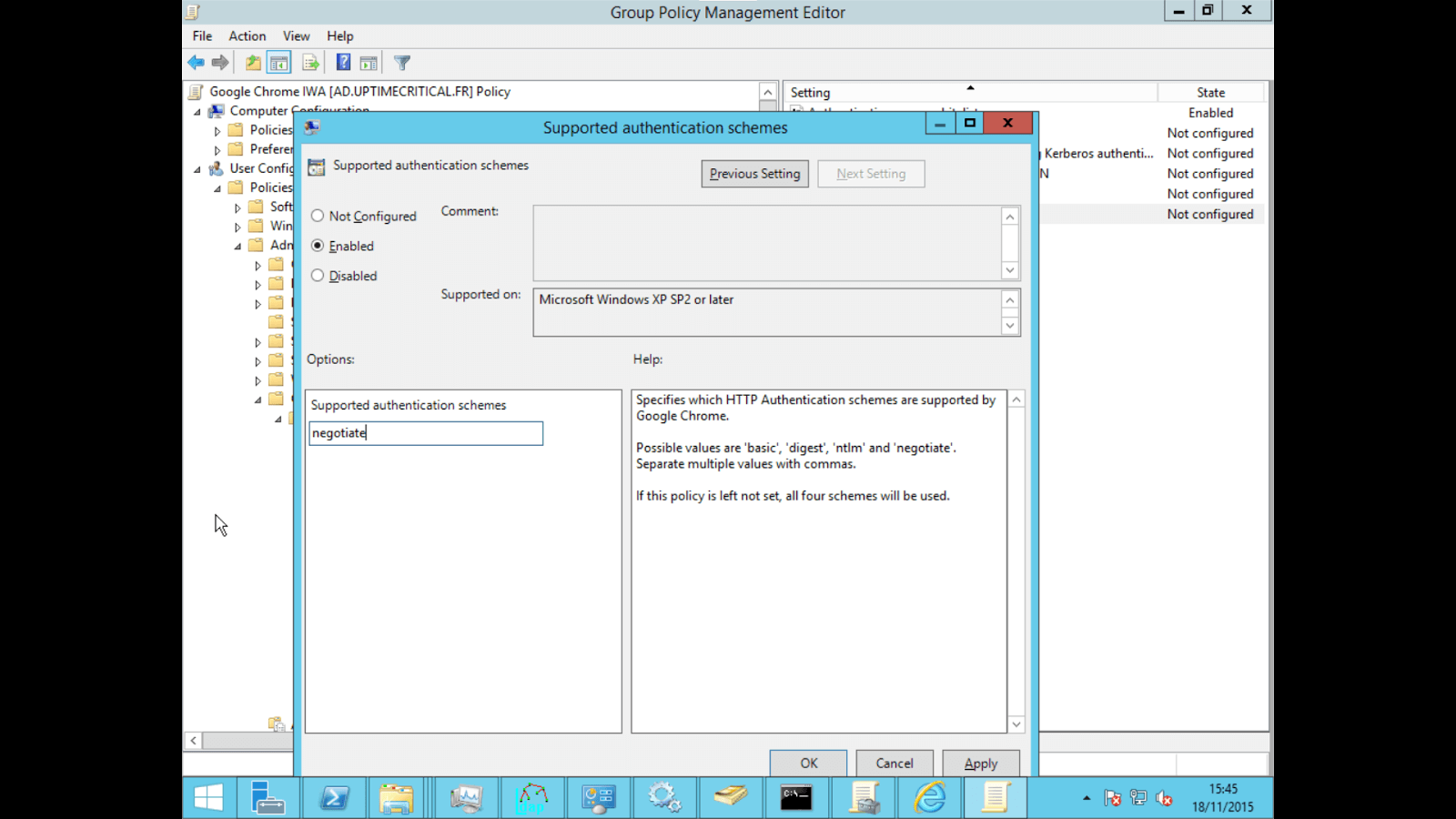
* Navigate to **User Configuration/Policies/Administrative Template/Classic Administrative Templates(ADM)/Google/Google Chrome/HTTP Authentication/Supported authentication schemes**, right click > **"Edit"**
* Click on **"Enabled"** and enter **"negotiate"** in the value field
[](https://trustelem-doc.wallix.com/uploads/images/gallery/2022-06/iwa-chrome-auth.png)
* Verify that the GPO is enabled and linked to your domain
**Note:** with the new Edge based on Chromium, you have to go here: https://www.microsoft.com/en-us/edge/business/download?form=MA13FJ and click on **Download Windows XX-bit policy**. Then follow the Google GPO process.
* Connect to a domain controller as a domain administrator
* Open the Group Policy Management Console (**gpmc.msc**)
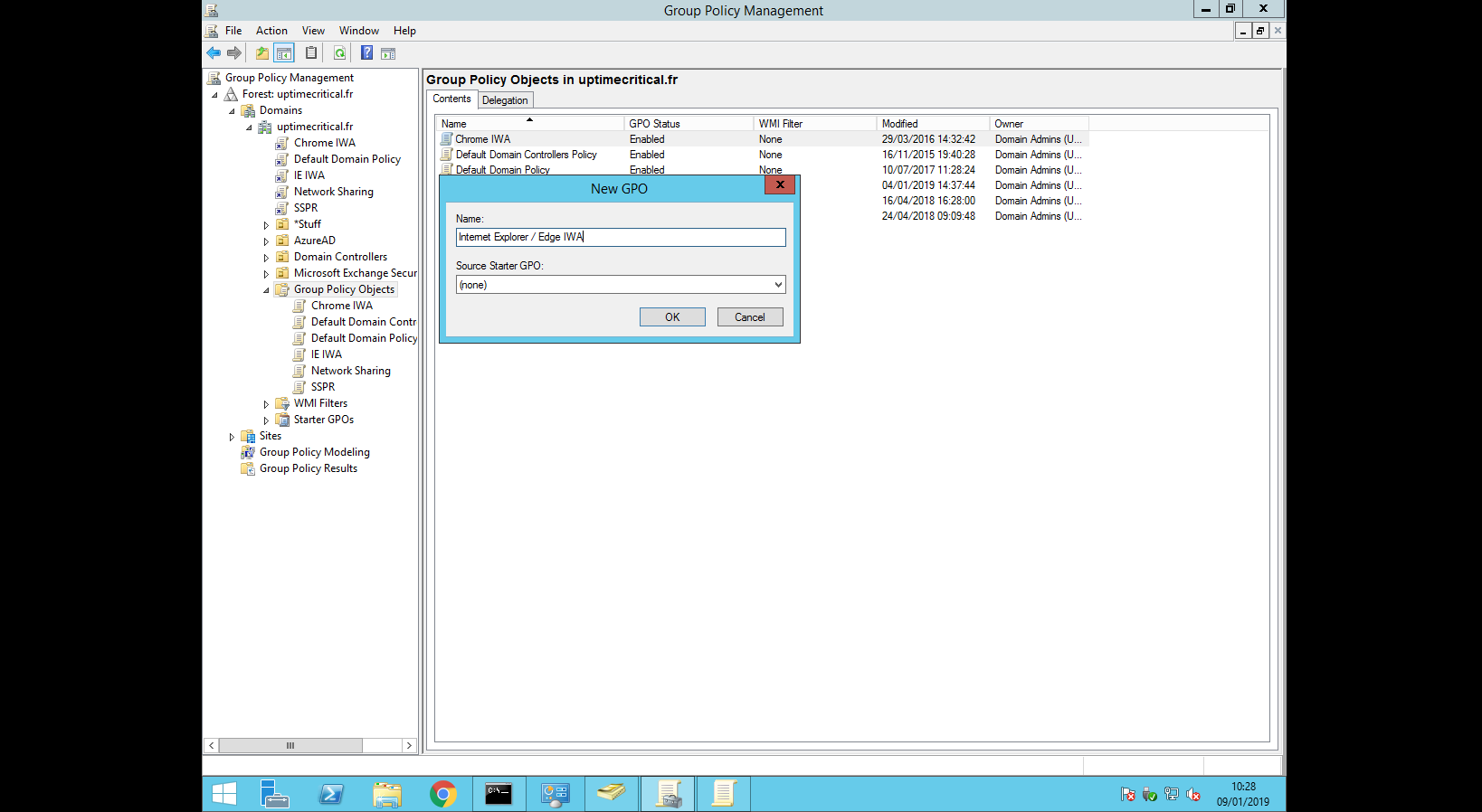
* Choose an existing GPO or create a new one
[](https://trustelem-doc.wallix.com/uploads/images/gallery/2022-06/iwa-ie-gpo.png)
* Edit the policy (Right click > Edit)
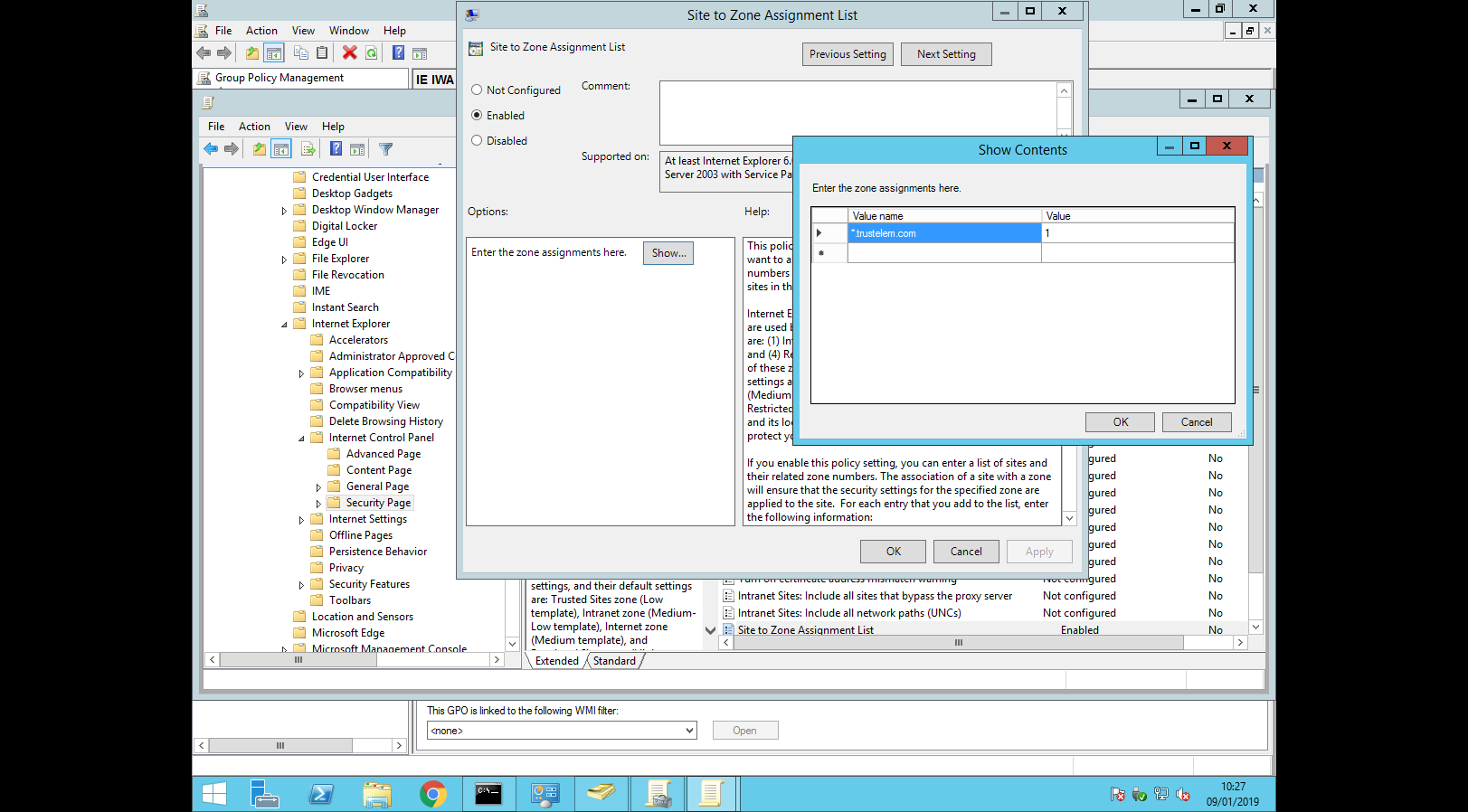
* Navigate to **User Configuration/Policies/Administrative Template/Windows Components/Internet Explorer/Internet Control Panel/Security Page/Site to Zone Assignment List**, right click > **"Edit"**
* Click on **"Enabled"** and enter **"*.trustelem.com"** in the first field and **"1"** (Intranet zone) in the second field
[](https://trustelem-doc.wallix.com/uploads/images/gallery/2022-06/iwa-ie-sites.png)
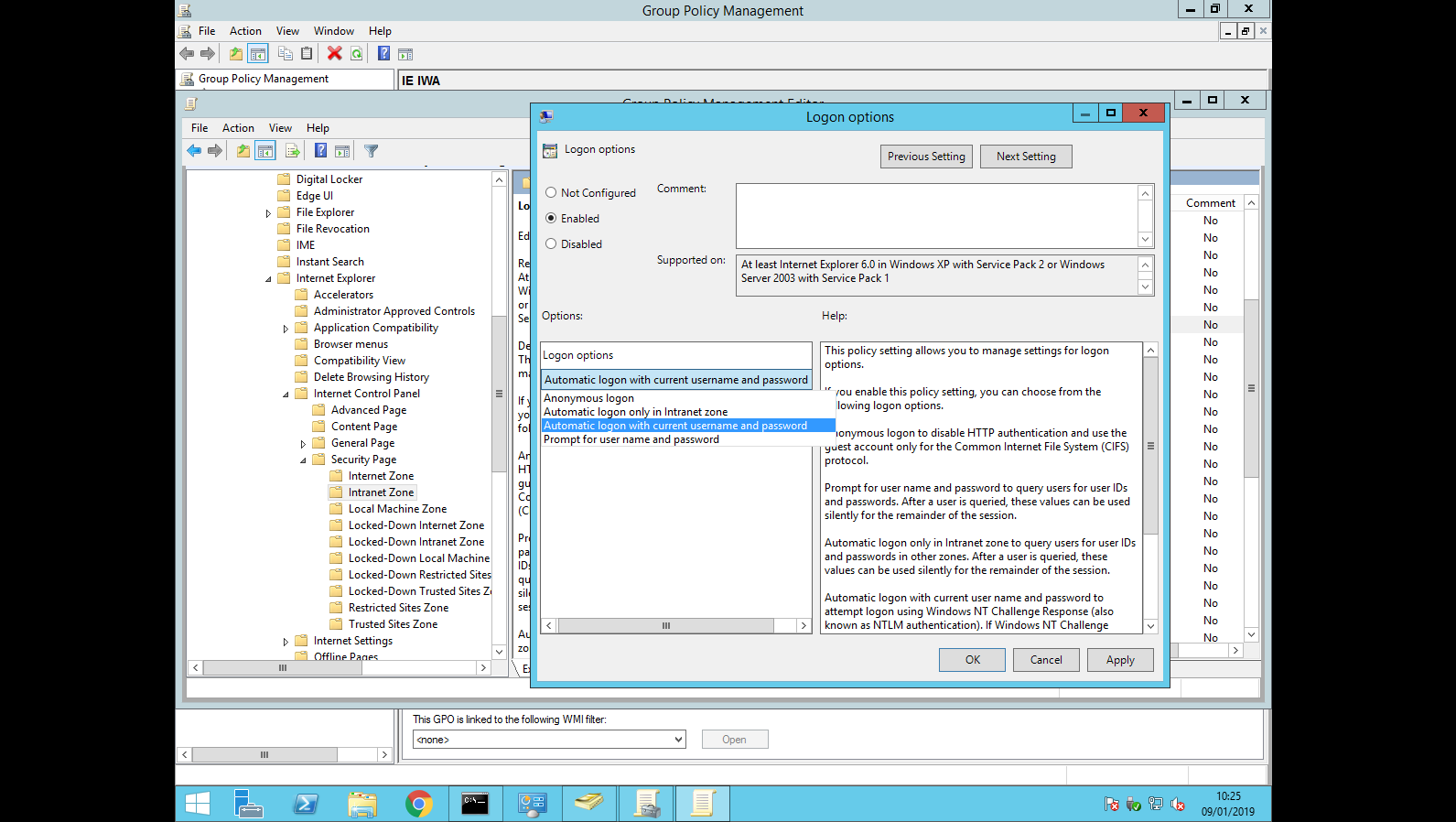
* Navigate to **User Configuration/Policies/Administrative Template/Windows Components/Internet Explorer/Internet Control Panel/Security Page/Intranet Zone/Logon Options**, right click > **"Edit"**
* Click on **"Enabled"** and choose **"Automatic logon with current username and password"**
[](https://trustelem-doc.wallix.com/uploads/images/gallery/2022-06/iwa-ie-logon.png)
* Check that the GPO is enabled and linked to your domain
* Connect to a domain controller as a domain administrator
* Download the GPO:
* Extract the folder, copy firefox.admx and firefox.adml for windows to your policy folder (usually C://Windows/PolicyDefinitions).
* Open the Group Policy Management Console (**gpmc.msc**)
* Choose an existing GPO or create a new one
* Edit the policy (Right click > Edit)
* Navigate to **User Configuration/Policies/Administrative Templates/Firefox/Authenticaton/SPNEGO**, right click > **"Edit"**.
[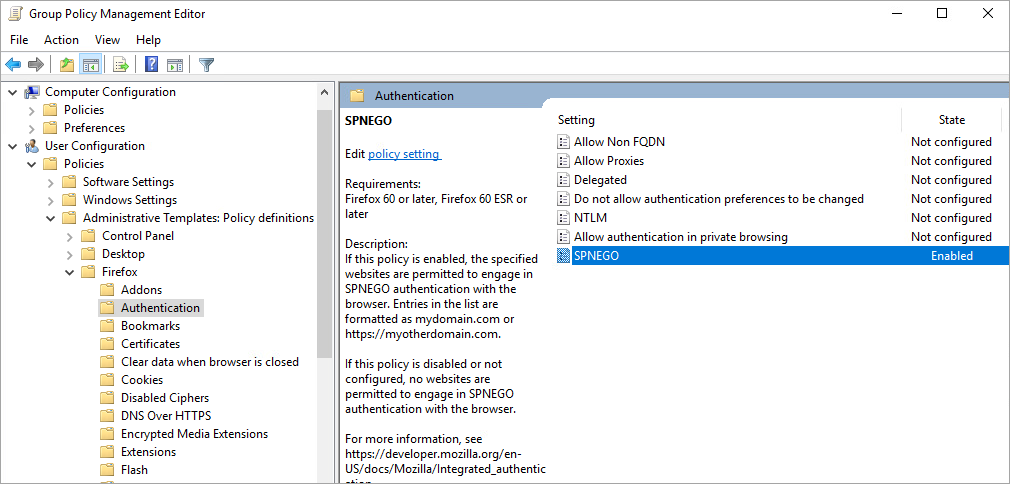](https://trustelem-doc.wallix.com/uploads/images/gallery/2022-06/iwa-firefox-gpo.png)
* Click on **"Enabled"** then **"Show"** and enter **"https://mydomain.trustelem.com"** in the value field
[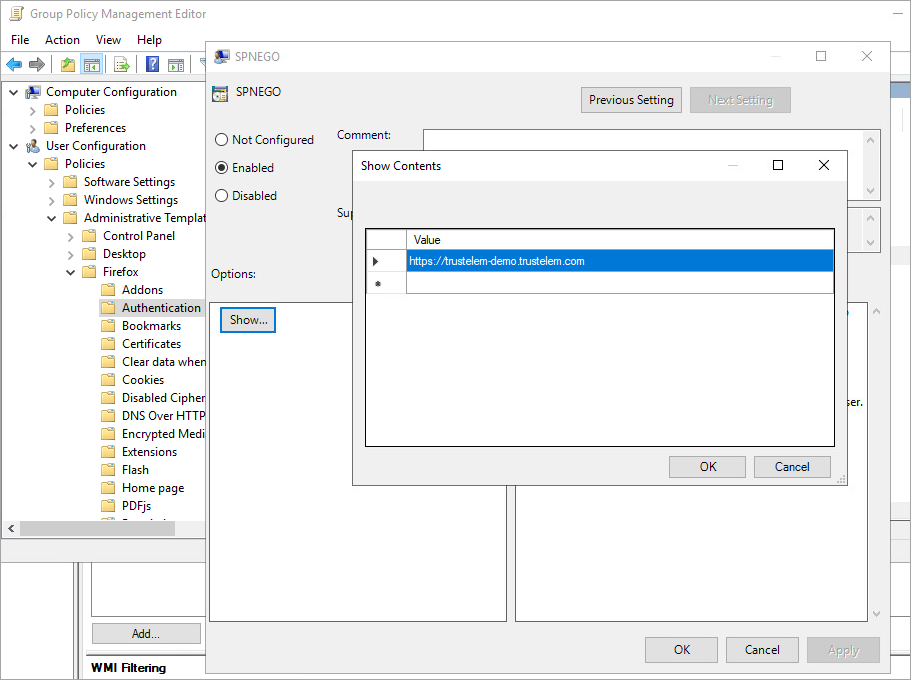](https://trustelem-doc.wallix.com/uploads/images/gallery/2022-06/iwa-firefox-select.png)
* Verify that the GPO is enabled and linked to your domain
* In the Windows start menu, search: **Internet Options > Security**
* Select **Local Intranet**, then click on **Sites**
* In the **Local Intranet** window, make sure that **Include all local sites (intranet) not mentioned in other zones** is checked, the click on **Advanced**
* In the **Local Intranet** window, enter ***.trustelem.com** to the zone, so as to activate Single Sign-On. Click on OK, the close the Local Intranet window
* In the **Internet Options > Security > Local Intranet** window, click on **Custom Level... > User Authentication** and choose **Automatic logon with current username and password**
* Click on **OK**. Restart Microsoft Internet Explorer / Edge so as to activate this configuration
* On user desktops, open an Active Directory-authenticated session
* Launch Firefox
* In the address bar, enter **about:config**
* Select the **network.negotiate-auth.trusted-uris** parameter
* Enter your custom Trustelem hostname: **mydomain.trustelem.com** or add it to the list, separated by commas
* Click OK
* Restart Firefox