# Delegated administration
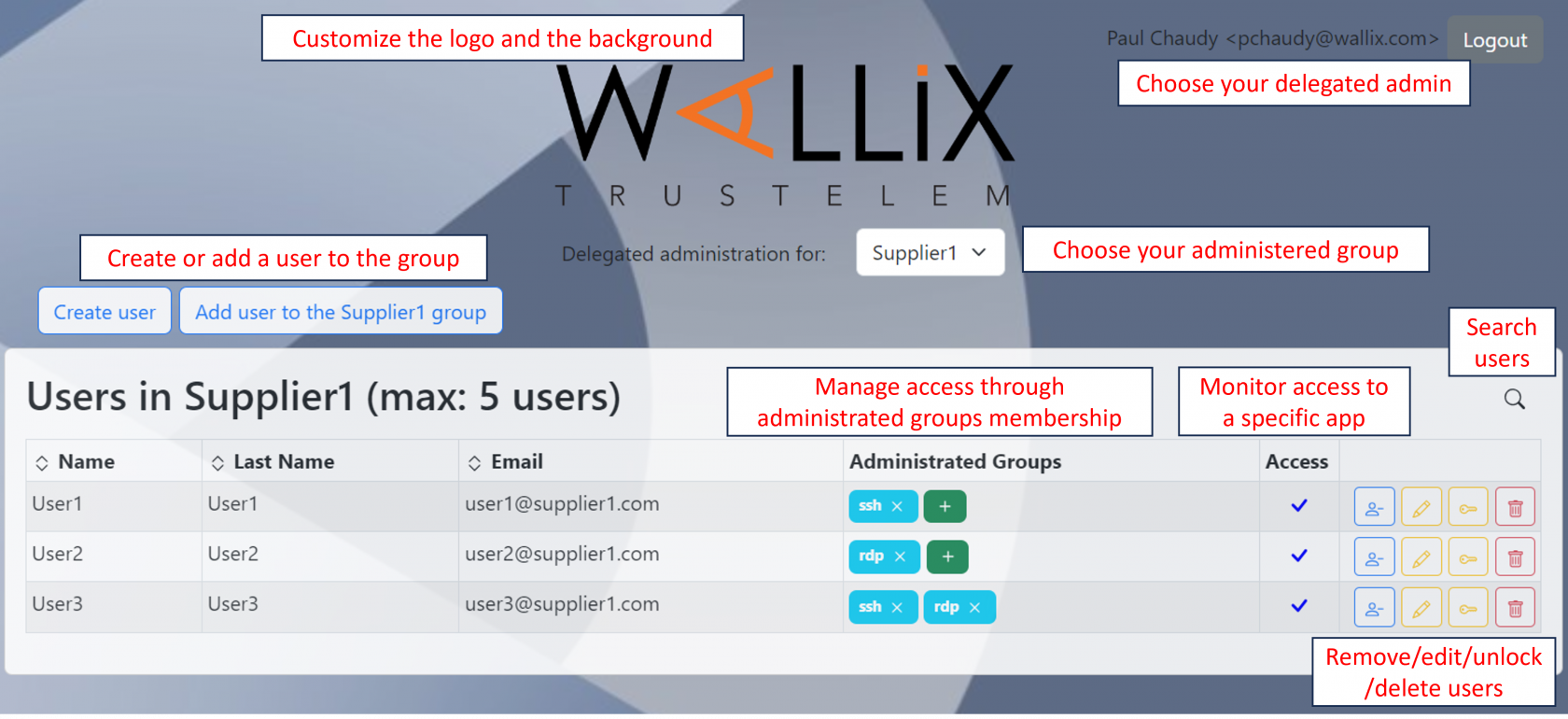
The **delegated administration** is a tool which offers the possibility to let non-Trustelem admin users administrate only Trustelem groups.
This new kind of administrator can do the following things on the administered groups:
* Create / Add / Delete / Remove / Edit a user in the administered group
* Reset factors of administered users
* Affect new groups to administered users
[](https://trustelem-doc.wallix.com/uploads/images/gallery/2023-11/wXvdav2.PNG)
**To enable this tool, you need to send an email to your WALLIX sales contact**.
This tool can be easily customized: change the logo or the background, remove a feature...
### How to setup the Delegated administration
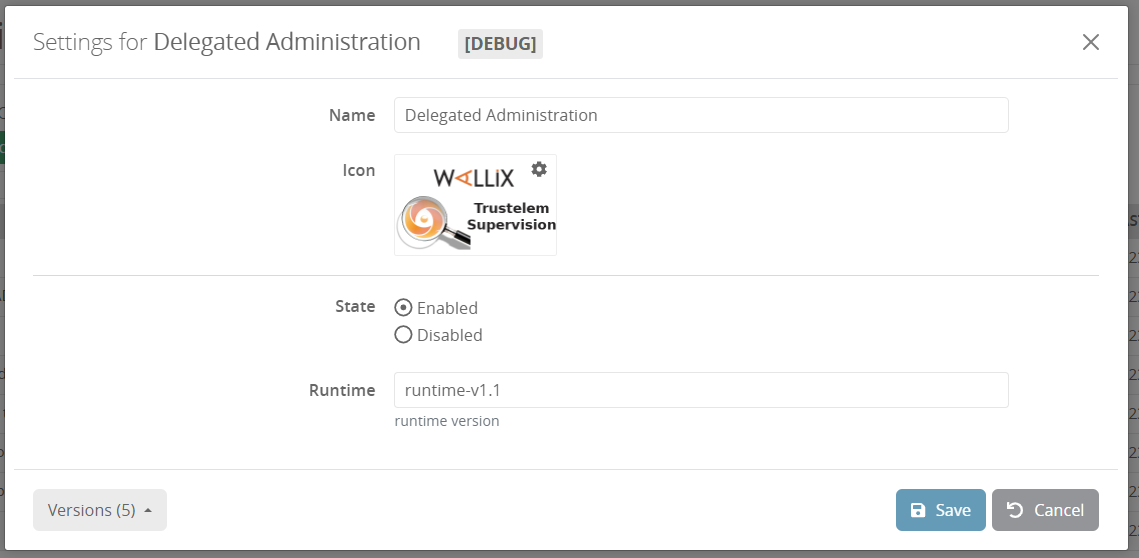
Once the tool enabled, you will have a new app on Trustelem named "Delegated administration". You can change its name and logo.
[](https://trustelem-doc.wallix.com/uploads/images/gallery/2023-10/delegated-admin2.PNG)
The first step for the setup is to give access for the selected users to this app using Trustelem tab **Access rules**
[](https://trustelem-doc.wallix.com/uploads/images/gallery/2023-10/delegated-admin3.PNG)
As usual, you can give individual rights for each delegated administrator but it's better to create a group for all of them and add a unique permission.
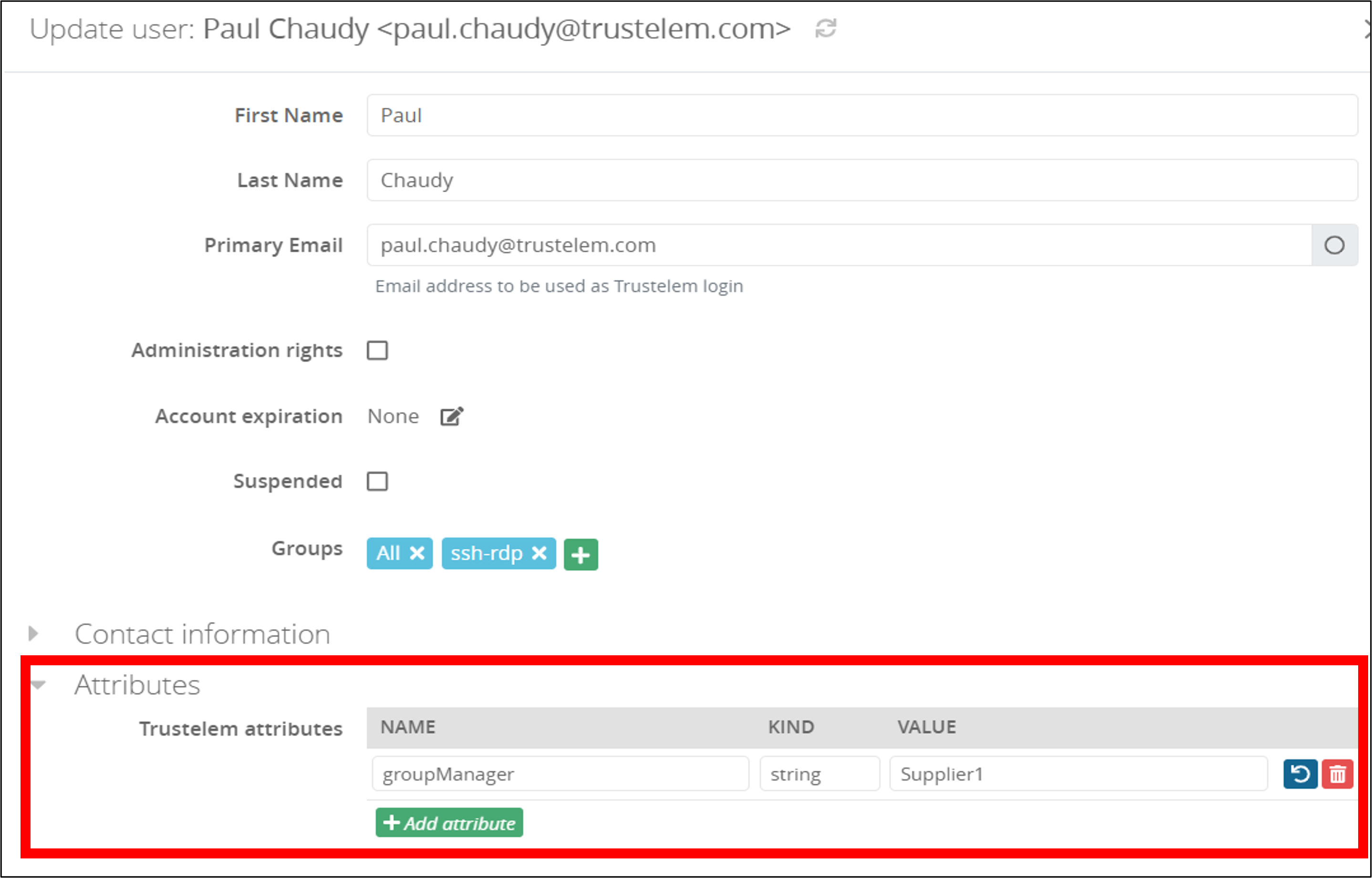
Then you need to go on the Trustelem profile of your delegated administrators or the groups they belong to, and add one attribute per group :
* **name:** groupManager
* **kind:** string
* **value:** group name
[](https://trustelem-doc.wallix.com/uploads/images/gallery/2023-11/dav2-4.PNG)
Instead of providing a **group name**, you can also use **regular expressions** to select multiple groups.
For instance **regexp:.\*** will select all existing groups.
Still for the **value field**, you can add **;max:X** to limit to X the maximum users number in the group, managed by this delegated administrator.
Finally, still on the same field, you can add **assignableGroups:group1,group2,groupN** to offer the possibility to add other groups to the users.
[](https://trustelem-doc.wallix.com/uploads/images/gallery/2023-10/delegated-admin4.PNG)
The first example let the administrator manage Trustelem group named **TMA-Bastion** with no additional features.
The second example let the administrator manage all Trustelem groups with a maximum of 3 users inside them.
[](https://trustelem-doc.wallix.com/uploads/images/gallery/2023-11/editablegroups.PNG)
**In the screenshot, there is "editableGroups" instead of "assignableGroups", because it changed --> this image will be modify. The right value is "assignableGroups".**
The third example let the administrator manage Trustelem group named **Supplier1** with a maximum of 5 users inside and the possibility to add the groups **rdp** and **ssh** to the 5 users.
#### Use case 1
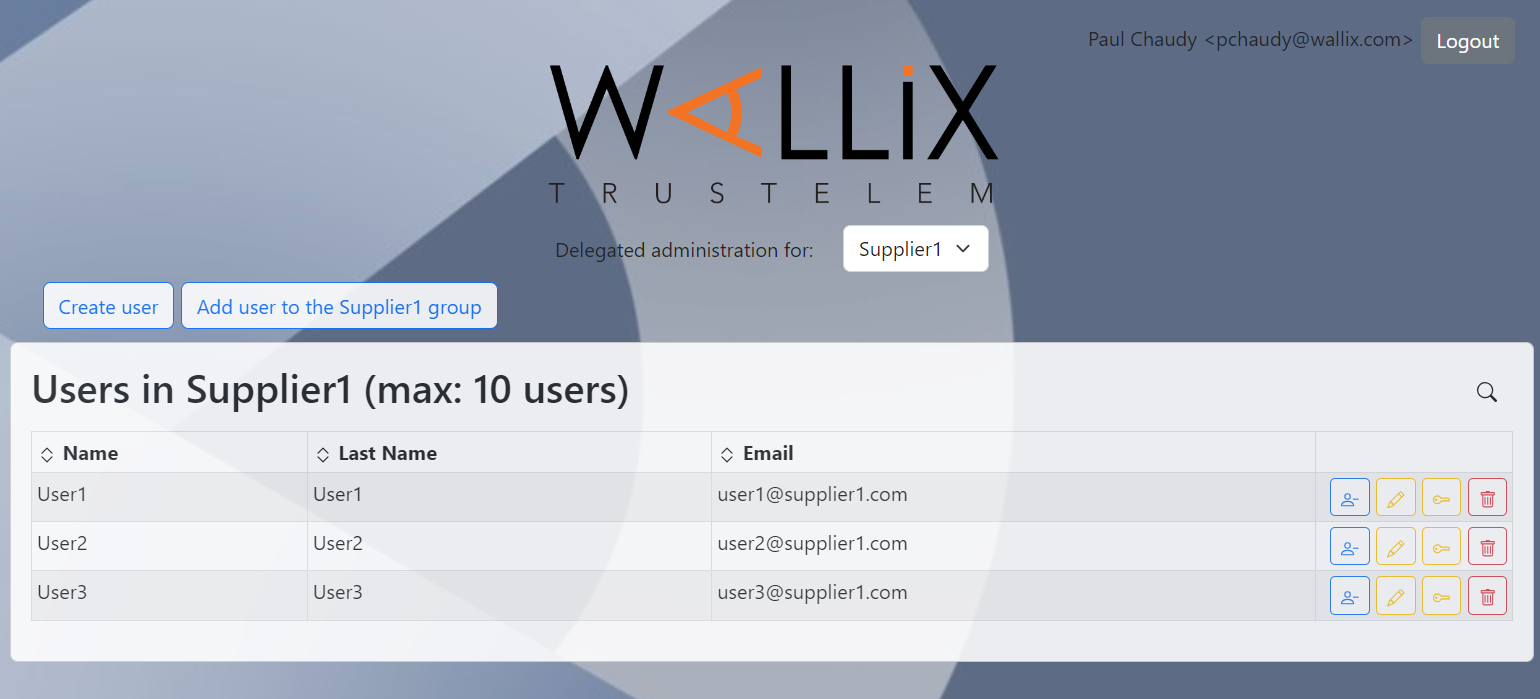
One group on Trustelem is dedicated to one Supplier and gives all the requested access to applications.
This group is named **Supplier1**.
To handle license abuses, this group is limited to 10 users.
In this case the attribute **groupManager** should have the value: **Supplier1;max:10**
[](https://trustelem-doc.wallix.com/uploads/images/gallery/2023-11/dav2-1.PNG)
#### Use case 2
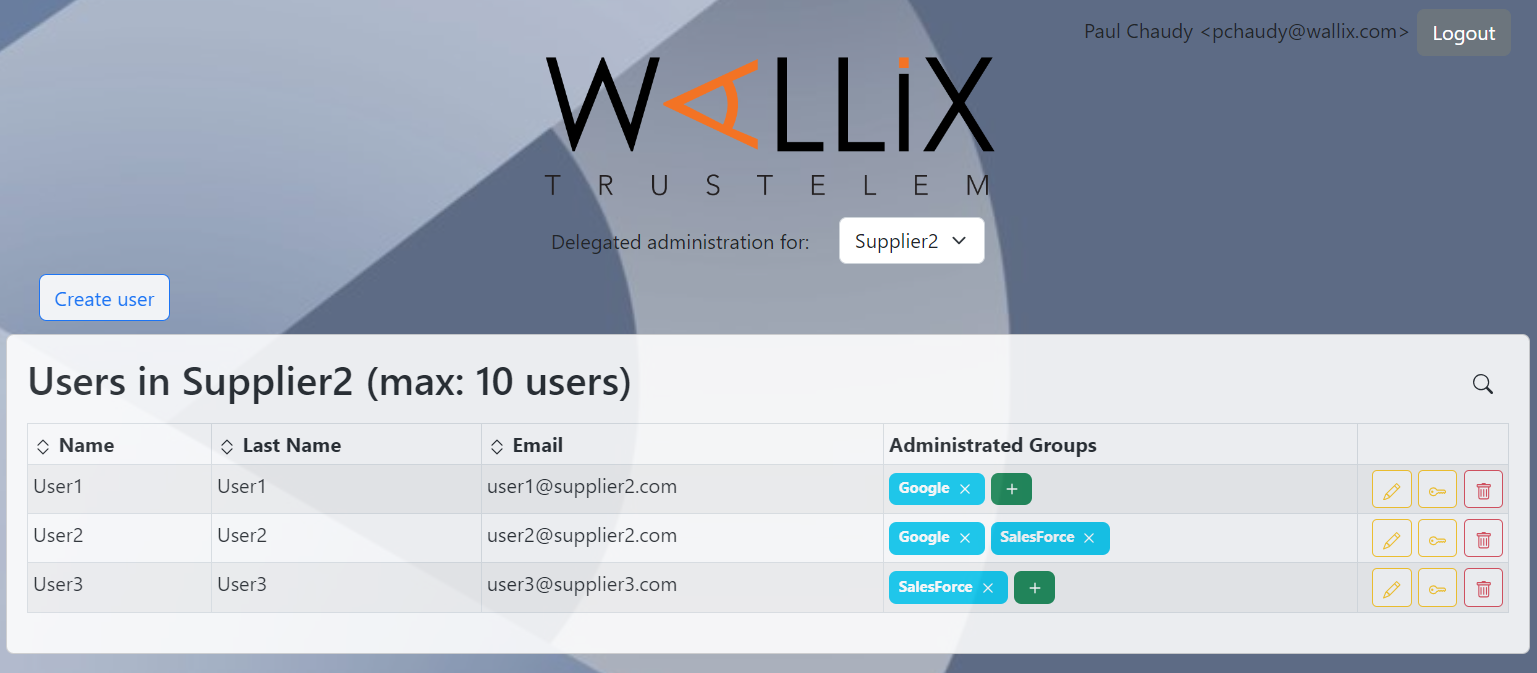
One group on Trustelem gives access to **Google** for users coming from **Supplier2** and **Supplier3**.
This group is named **Google**
Another group on Trustelem gives access to **SalesForce** for users coming from **Supplier2** and **Supplier3**.
This group is named **SalesForce**
I have 2 other groups: one name **Suppliers2** with users coming from **Suppliers2** and one name **Suppliers3** with users coming from **Suppliers3**
To handle license abuses, the 2 suppliers are limited to 10 users.
In this case the attribute **groupManager** should have the value:
* **Supplier2;assignableGroups:Google,SalesForce;max:10** for the delegated administrators of **Supplier2**
* **Supplier3;assignableGroups:Google,SalesForce;max:10** for the delegated administrators of **Supplier3**
[](https://trustelem-doc.wallix.com/uploads/images/gallery/2023-11/dav2-2.PNG)
*Note: in this example, the buttons **add user to the group** and **remove user from the group** have been removed*
### How to use the Delegated administration
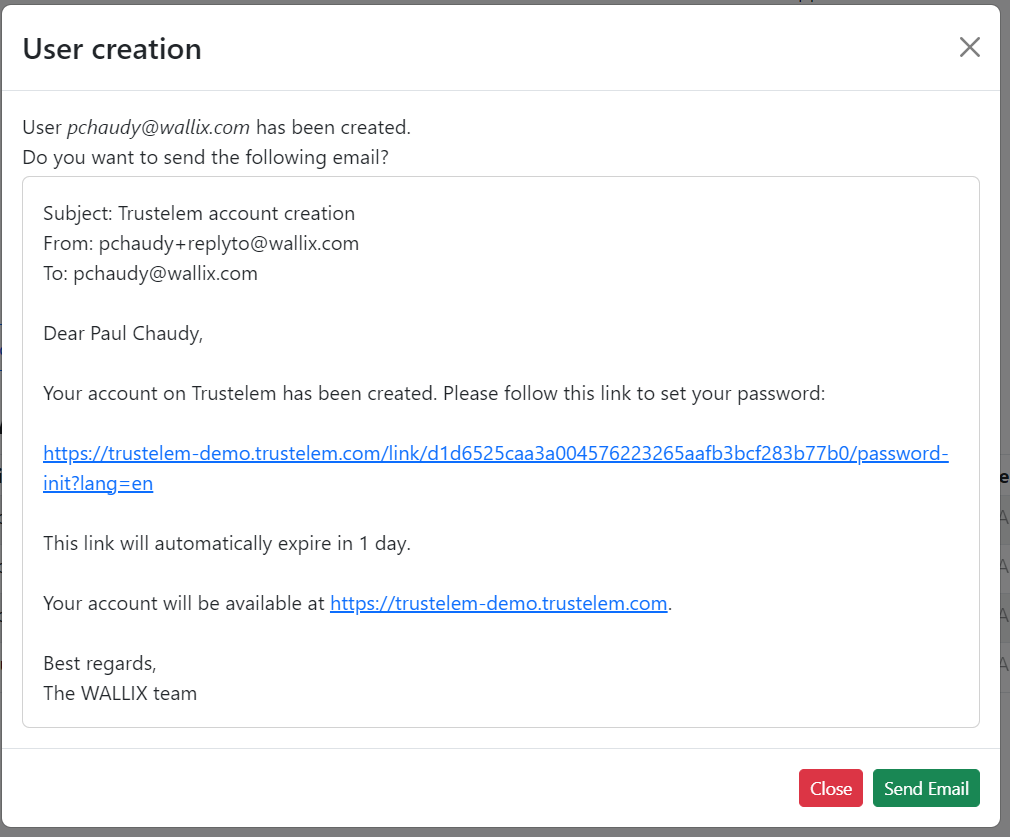
Once the delegated administrator is authenticated to the application, he can create new user using the **Create user** button.
* If the email address is a real one, then he can click on **Send email** at the end of the creation
* If the email address is not a real one, then he can copy the text and send manually the content
[](https://trustelem-doc.wallix.com/uploads/images/gallery/2023-10/delegated-admin5.PNG)
**Notes:**
* After clicking on the link, the user will have to define a password. Then he will be redirected to his Trustelem login page.
* It is possible to directly redirect the users to one unique application after the password definition.
To do that, you need to create a WALLIX support request with your Trustelem tenant name and the application name.
* It is also possible to see the authentication type (1 factor, 2 factors) if your delegated admin tool is dedicated to one app (for Access Manager or SaRA for instance).
To do that, you also need to create a WALLIX support request with your Trustelem tenant name and the application name.
Then the delegated administrator can use the different buttons to:
* Add an existing user in the administrated group
* Remove a user from the group
* Delete a group user
* Edit a group user
* Reset factors of a group user
* Add new groups to a user